Overview
This article helps you diagnose and resolve issues when a media plan sync fails or behaves unexpectedly when syncing from Excel into Advvy.
Media plan sync issues are most commonly caused by:
Validation or data quality errors
Incorrect environment or campaign connection
Out-of-date Reference Data
Import job failures
Following the steps below will help you identify the root cause and resolve the issue efficiently.
Before Troubleshooting
Before starting, confirm the following:
You are connected to the correct Advvy environment
You are connected to the correct Campaign
Reference Data has been downloaded and refreshed
The media plan has been saved in Excel
Step 1: Check the Campaign Import Job
Every media plan sync creates a Campaign Import Job record in Advvy.
How to Check
Open the Campaign in Advvy
Navigate to Related → Campaign Import Jobs
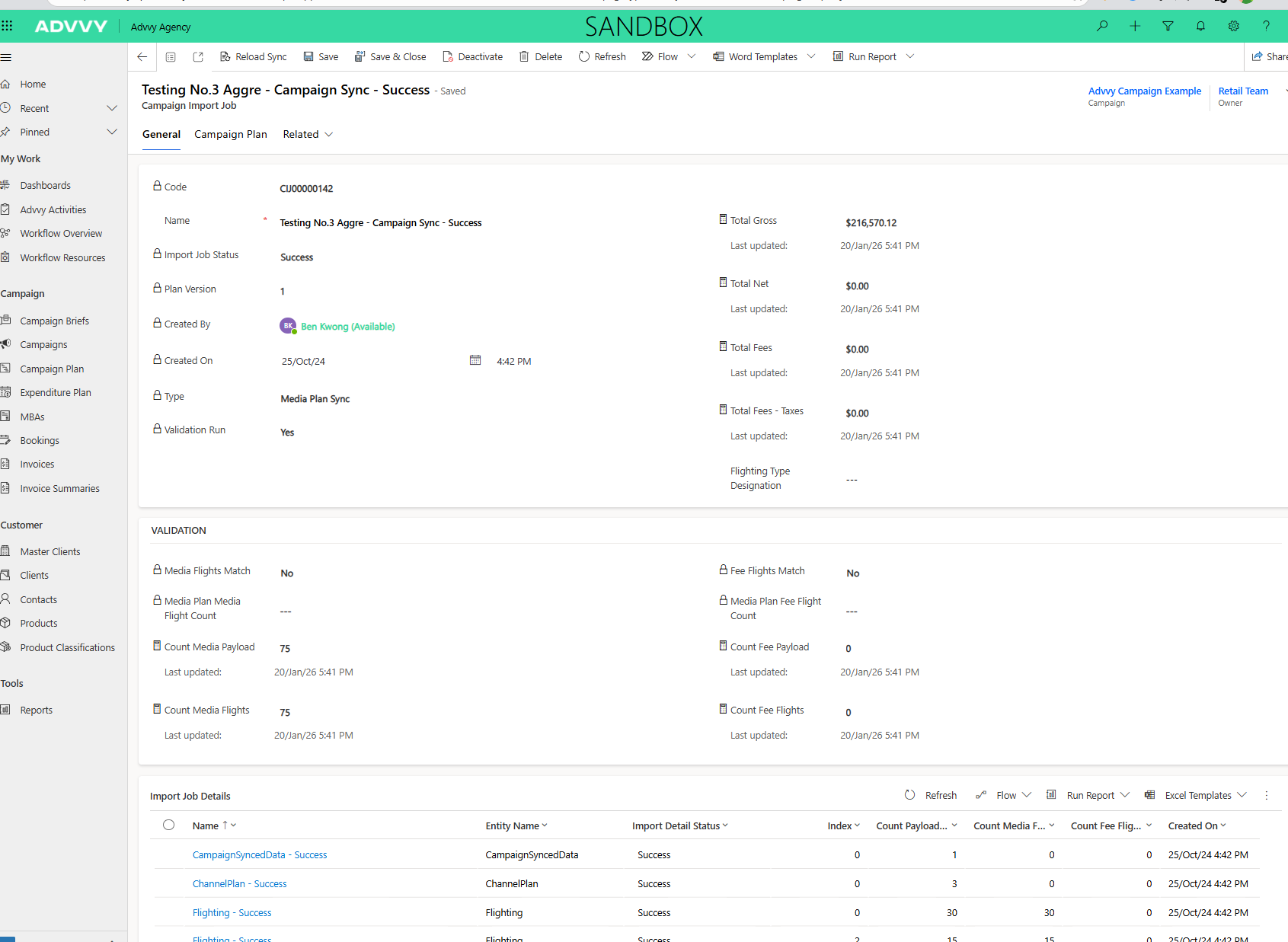
Open the most recent Import Job
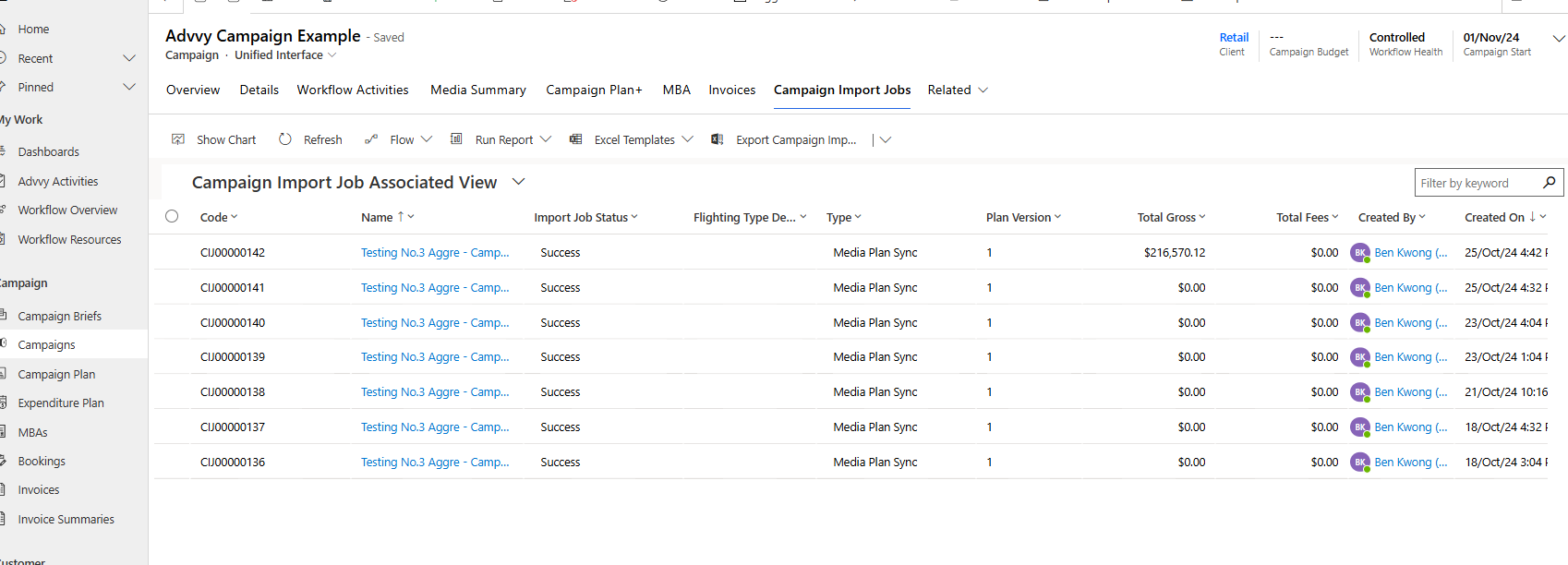
What to Look For
Status = Success→ Sync was successful
Status = Errored → Sync failed and requires investigation
If the status is Errored, review the error messages on the Import Job record. These messages indicate which rows or fields caused the failure.
Step 2: Review and Resolve Validation Issues
Validation issues will prevent a media plan from syncing successfully.
Instead of only checking individual cell errors, start by reviewing the Advvy Data Quality Dashboard within the media plan.
What to Check
Review Campaign Information
Open the Advvy Data Quality Dashboard tab
Review all campaign-level checks and alerts
Validate Planned vs Advvy Tables
Check that values in the Planned tables align with the Advvy tables
Pay particular attention to:
Planned vs Advvy totals
Any unprocessed rows (these should only exist where expected)
Resolve Mismatches
If numbers do not align, or data appears missing:
Select Refresh All
This will reprocess all planned data and correctly populate the Advvy tables
After Resolving Issues
Confirm that all alerts in the Data Quality Dashboard have cleared
Save the Excel workbook
Step 3: Refresh Reference Data
Out-of-date Reference Data can cause sync failures or missing values.
What to Do
Open Data → Queries & Connections in Excel
Locate the Reference Data queries
Refresh each query one at a time
If new reference values were recently added (for example in SMD), remember:
Master data is refreshed into Advvy overnight
Reference Data must then be refreshed in Excel
Step 4: Confirm Environment and Campaign Connection
Sync issues can occur if the Add-in is connected to the wrong Campaign or environment.
Check the Following
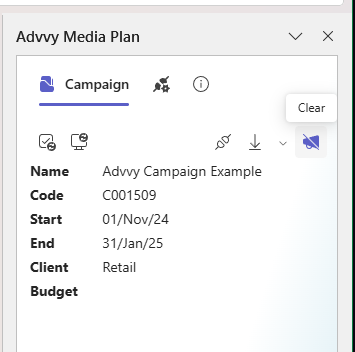
Environment URL matches the intended Advvy instance
Campaign name displayed in the Add-in is correct
If needed:
Use the Clear icon to disconnect
Reconnect to the correct Campaign
Step 5: Retry the Sync
After resolving any issues:
Reopen the Advvy Add-in
Confirm environment and Campaign connection
Select Sync Media Plan again
Do not attempt multiple syncs simultaneously.
Common Sync Issues & Resolutions
| Issue | Likely Cause | Resolution |
|---|---|---|
| Sync fails immediately | Environment not connected | Reconnect to correct environment |
| Sync completes but data missing | Missing Data Captured in Advvy Tables | Perform a Refresh All and review Data Quality Dashboard before syncing. |
| Wrong data synced | Incorrect Campaign selected | Disconnect and reconnect to correct Campaign |
When to Contact Support
Contact Advvy Support if:
Import Job errors are unclear
Sync fails repeatedly after corrections
Data appears corrupted after a sync
Include the following when contacting support:
Campaign name
Import Job ID
Screenshot of error messages
Was this article helpful?
That’s Great!
Thank you for your feedback
Sorry! We couldn't be helpful
Thank you for your feedback
Feedback sent
We appreciate your effort and will try to fix the article