Overview
Reference Data underpins all media planning functionality in Advvy. It powers dropdown lists, validations, lookups, rate structures, and structural logic used throughout the media plan.
Once Reference Data has been downloaded via the Advvy Excel Add‑in, it must be refreshed inside the workbook to ensure all reference tables are fully populated and up to date.
If Reference Data is not refreshed:
Dropdowns may appear empty
Validation rules may fail
Lookups may return incorrect or missing values

Important Timing Note (SMD Master Data)
Master data is captured from SMD each morning and uploaded into Advvy.
If changes are made in SMD (for example, creating a new schedule or code):
It can take at least one business day for the data to appear in Advvy
After it appears in Advvy, Reference Data must still be refreshed and loaded in Excel for it to become selectable in the media plan
Step 1: Download Reference Data via the Advvy Add‑in
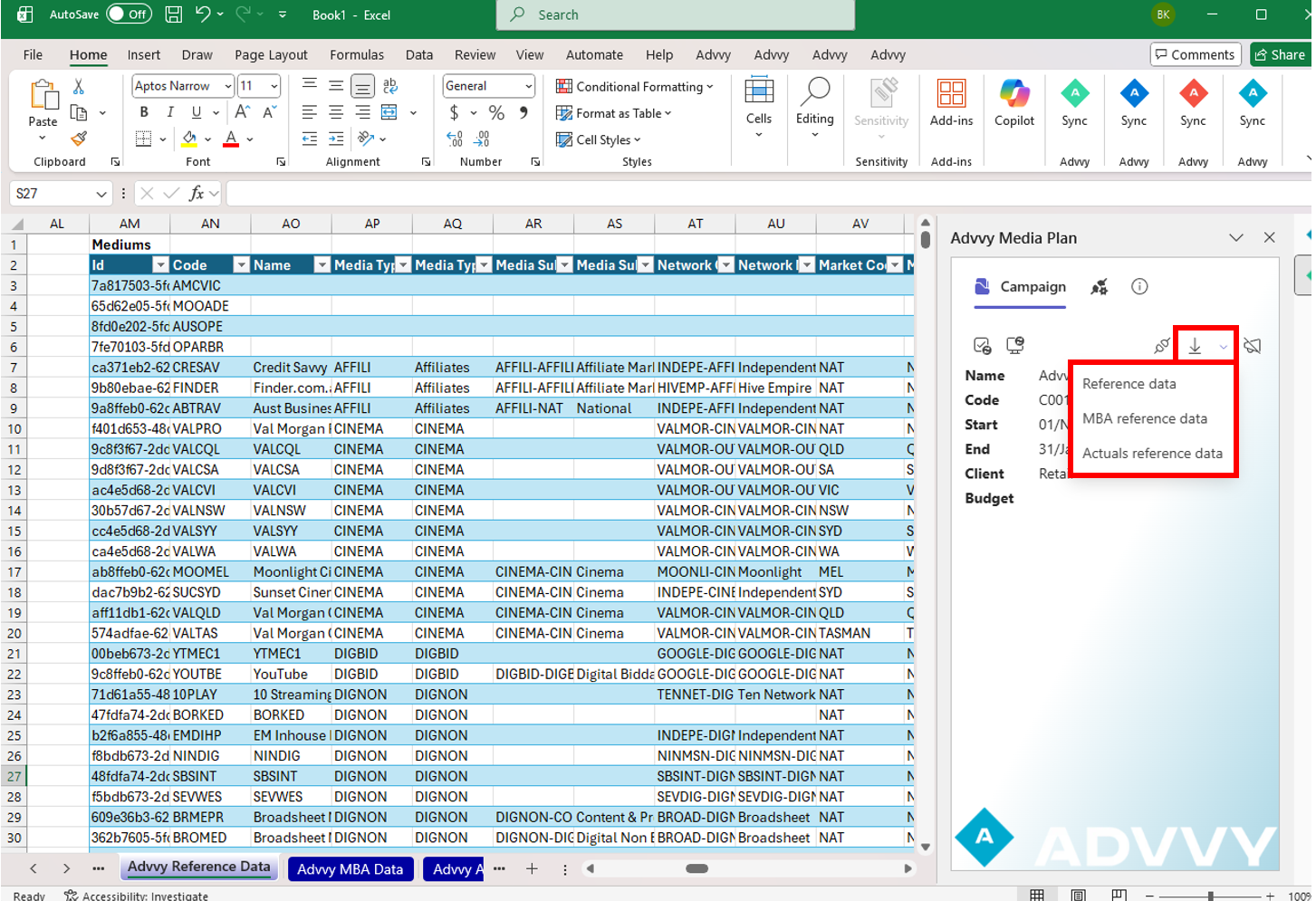
Before refreshing queries, ensure Reference and Campaign Data has been downloaded:
Open your media plan workbook
Open the Advvy Excel Add‑in
Confirm you are connected to the correct environment and campaign
Download Reference Data when prompted or as part of the standard setup flow
Step 2: Refresh Campaign Data via the Advvy Add‑in
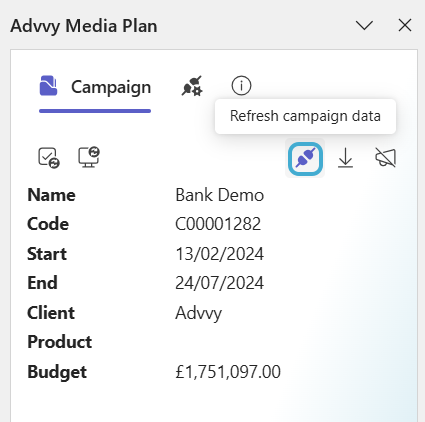
The Refresh Campaign Data action updates the connection to the Advvy Campaign Record and synchronizes any updates made at the Campaign level with Advvy.
When this action is run, the following information is downloaded/updated:
The connection to the Advvy Campaign Record
Any updates made to the Campaign-level record
Fees and Rates associated with the campaign
Schedules associated with the campaign
This ensures that the latest campaign information and financial details are accurately reflected in Advvy.
Step 3: Open the Queries Panel in Excel
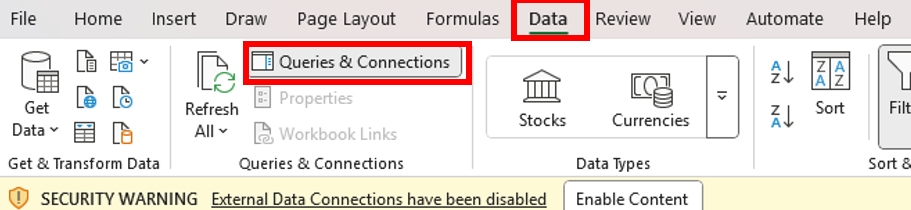
In Excel, navigate to: Data → Queries & Connections
The Queries panel will open on the right-hand side
Step 4: Locate the Reference Data Queries
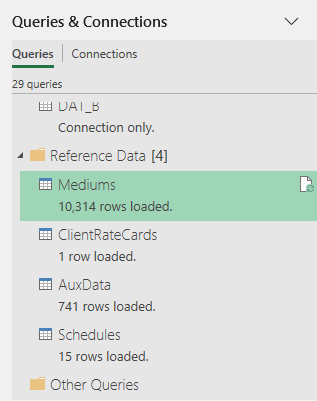
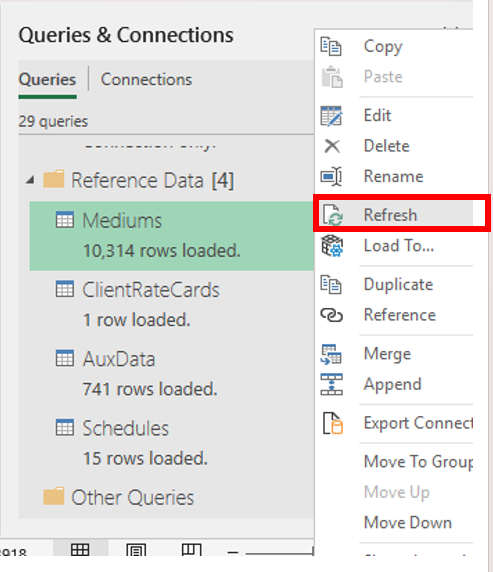
Scroll through the Queries list until you find the Reference Data section.
Typical Reference Data queries include:
Client Rate Data
Medium Data
Aux Data
Schedules Data
These queries populate the master lookup tables used by the media plan.
Step 5: Refresh Each Reference Data Query
For each Reference Data query:
Click the Refresh icon, or
Right‑click the query and select Refresh
⚠️ Important
Refresh one query at a time
Refreshing multiple queries simultaneously may interrupt loads and result in incomplete or corrupted reference tables
Step 6: Use the Data Quality Dashboard
The Data Quality Dashboard, located in the header area of the media plan, provides real‑time guidance on Reference Data status.
Purple alerts indicate which reference tables require refreshing
Refresh the corresponding query until the alert disappears
When all alerts are cleared, your Reference Data is fully up to date.

After Refreshing Reference Data
Once all Reference Data queries have refreshed successfully:
✔ Dropdown lists and lookups will repopulate correctly
✔ Validation rules will function as expected
✔ Structural dependencies will align with Advvy
✔ The media plan will be synchronised with the current campaign configuration
Your media plan is now ready for accurate planning and syncing.
Best Practices
Always refresh Reference Data before starting or updating a media plan
Refresh Reference Data after environment or campaign changes
Re‑refresh Reference Data if new schedules, markets, or codes were recently created in SMD
Was this article helpful?
That’s Great!
Thank you for your feedback
Sorry! We couldn't be helpful
Thank you for your feedback
Feedback sent
We appreciate your effort and will try to fix the article