Overview
When to roll back and which method to use.
Rolling back a media plan sync restores a previous version of campaign data in Advvy. It is used when a sync was performed incorrectly, caused issues, or needs to be reverted to a validated earlier version. Both rollback methods fully replace the current campaign data.
- Incorrect data was synced
- A sync caused validation issues
- The sync was run against the wrong campaign
- You need to revert to a previously validated version
- Changes caused reporting discrepancies
- Method 1 — Re-sync an older Excel file
- Method 2 — Reload a previous Import Job
Both methods overwrite all current flighting and fee data.
Which Method Should You Use?
Choose based on what you have available.
Method 1: Re-Sync an Older Media Plan
Restore campaign data by syncing a previous version of the Excel media plan through the Advvy Add-in.
Locate and open the version of the Excel media plan you want to restore.
Open the Advvy Add-in from the Excel ribbon and connect it to the correct Advvy environment.
In the Add-in, select the Campaign you want to restore data for. Ensure this matches the campaign the older file was originally synced to.
Click Sync in the Add-in. Advvy will overwrite the current campaign data with the contents of the older Excel file. A new Campaign Import Job will be created to record this sync.
- Advvy overwrites all current Campaign Flightings and Fee Flightings
- Media and fee data reflect the contents of the older Excel file
- A new Campaign Import Job is logged for this sync
- Campaign Plan+ and Media Summary update automatically
Method 2: Reload a Previous Import Job
Restore campaign data directly from the platform without needing the original Excel file.
Navigate to Campaigns and open the Campaign you want to restore.
Select the Campaign Import Jobs tab on the Campaign record. This shows the full history of all syncs run against this campaign
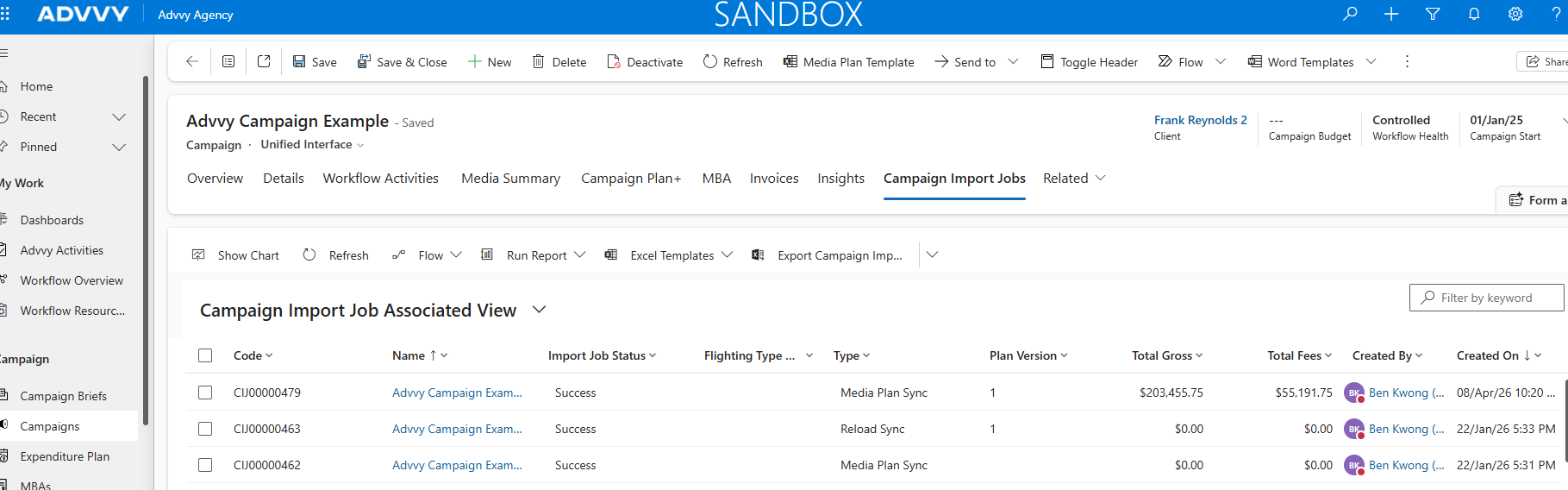
Click the Import Job that corresponds to the version of the campaign you want to restore. Check the date and plan version to confirm it's the right one.
Select Reload Sync from the ribbon at the top of the Import Job record. Advvy will restore the campaign data exactly as it existed at the time of that sync.
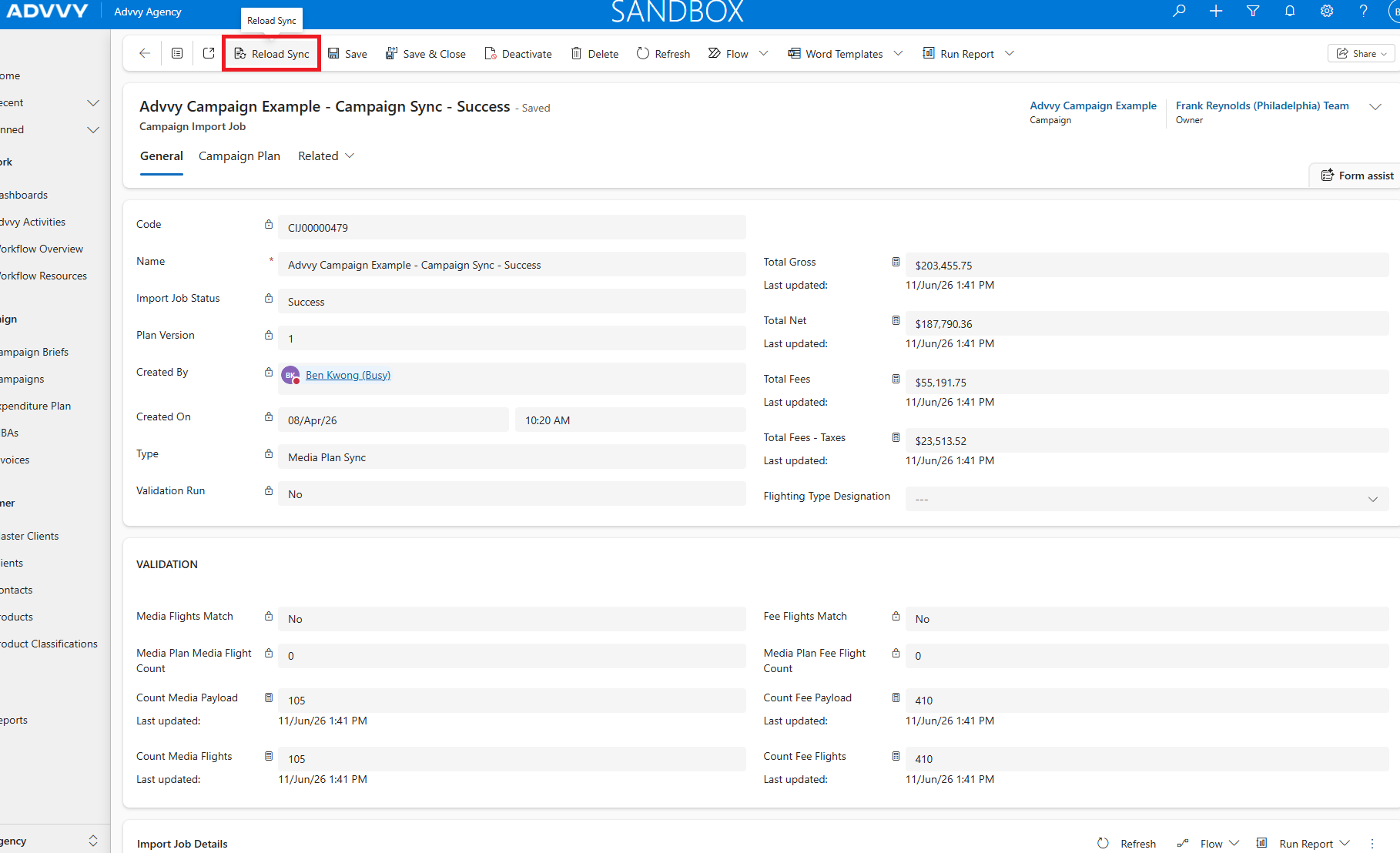
- All current Campaign Flightings and Fee Flightings are replaced
- No changes are required in Excel
- Campaign Plan+ and Media Summary update automatically
- The Reload Sync action is logged for auditing purposes
After the Rollback — Validate the Data
Always confirm the campaign data is correct after a rollback.
Key Takeaways
Was this article helpful?
That’s Great!
Thank you for your feedback
Sorry! We couldn't be helpful
Thank you for your feedback
Feedback sent
We appreciate your effort and will try to fix the article