Overview
Syncing a media plan is the process of transferring planned media activity from Excel into Advvy, where it becomes structured campaign data used for timelines, reporting, approvals, and integrations.
The sync process ensures that Advvy remains the single source of truth, while still allowing planners to work efficiently in Excel.
Before You Sync (Prerequisites)
Before running a sync, ensure the following steps are complete:
You are connected to the correct Advvy environment
You are connected to the correct Campaign record
Reference Data has been downloaded and refreshed
All required fields in the media plan are populated
The media plan has been saved
Tip: Always check the Data Quality Dashboard before syncing.
Step-by-Step: How to Sync a Media Plan
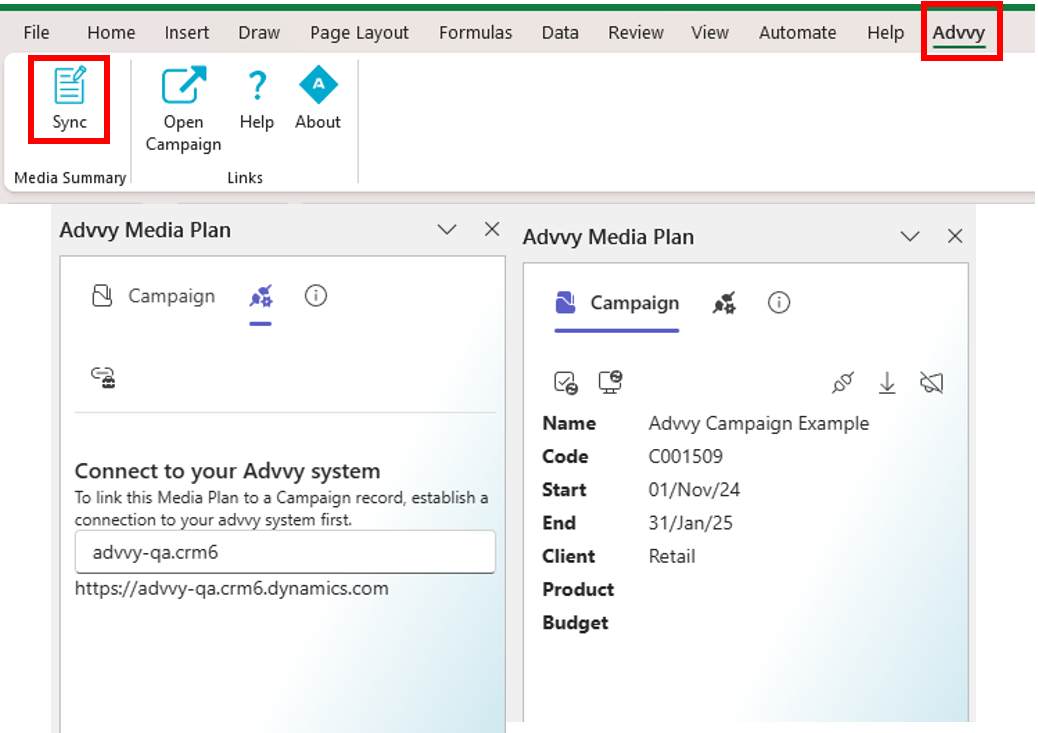
Step 1: Open the Advvy Excel Add-in
Open your media plan workbook
Open the Advvy Excel Add-in pane
Confirm your environment and campaign connection
Step 2: Review the Media Plan
Before syncing, review:
The Data Quality Dashboard for any alerts
Mandatory fields (dates, markets, media types, quantities)
Planned vs Advvy tables for consistency
Resolve any issues before proceeding.
Step 3: Run the Sync
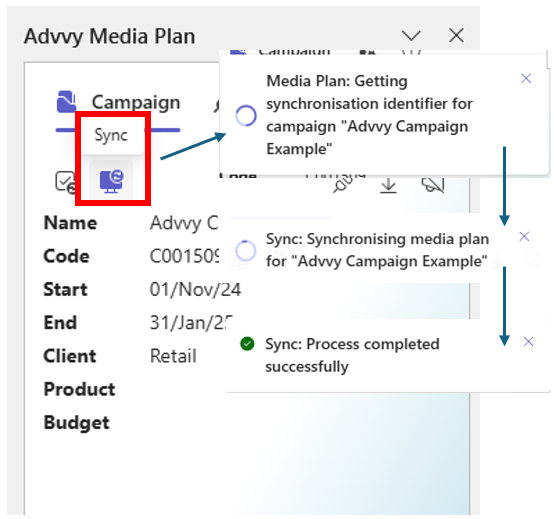
In the Advvy Excel Add-in, select Sync
Confirm the sync action when prompted
Allow the sync to complete
A progress indicator will display while data is being uploaded.
What Happens During a Sync
When a sync runs:
Campaign Flighting records are created or updated
Campaign Fee Flighting records are created or updated
Existing synced data for the campaign is replaced
⚠️ Important Each campaign supports one media plan sync at a time. Syncing a new plan will overwrite previously synced data.
Step 4: Campaign Import Job Creation
When a sync is initiated, Advvy automatically creates a Campaign Import Job record.
This record tracks the status of the sync process
Any processing issues are logged against the import job
Import jobs are the primary place to troubleshoot failed or partial syncs
To review an import job:
Open the relevant Campaign record in Advvy
Navigate to Related → Campaign Import Jobs
Open the most recent import job to review status and messages
For detailed troubleshooting steps, refer to the How to: Troubleshoot a Sync article.

After the Sync Completes
Once the sync finishes successfully:
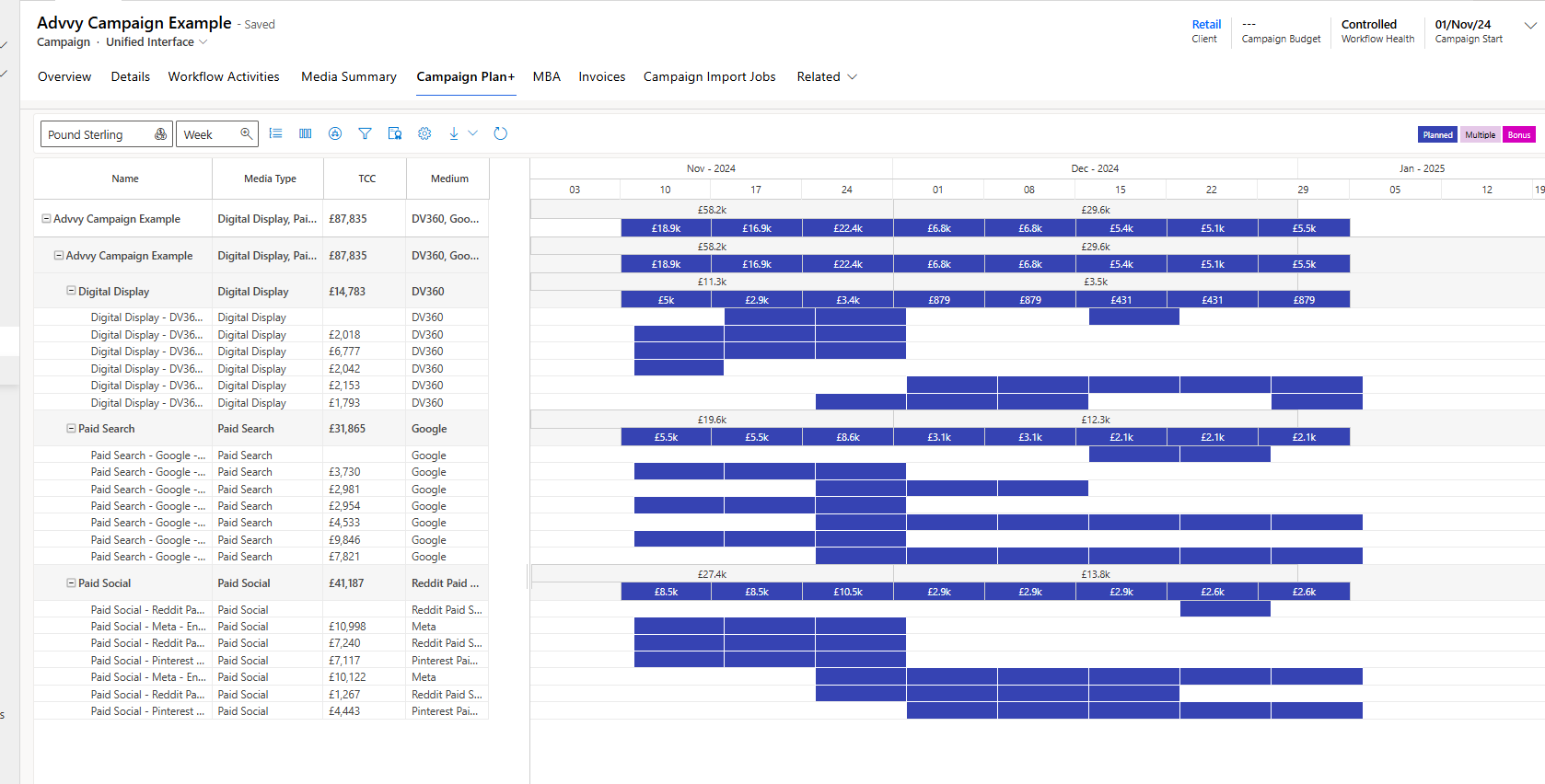
Campaign timelines become visible in Campaign Plan and Campaign Plan+
Media Summary and roll-ups update automatically
Campaign Flightings and Fee Flightings are refreshed
Data becomes available for MBA generation
It is recommended to review the campaign in Advvy immediately after syncing.
Common Post-Sync Checks
After syncing, verify:
Campaign Plan+ reflects the expected timing and values
Media Summary totals match the media plan
No unexpected gaps or missing flighting
If discrepancies appear, refresh data or re-sync if required.
Best Practices
Save your Excel file before every sync
Sync regularly to avoid large changes accumulating
Avoid syncing while another sync is in progress
Use Parent / Child Campaigns when managing multiple plans
Was this article helpful?
That’s Great!
Thank you for your feedback
Sorry! We couldn't be helpful
Thank you for your feedback
Feedback sent
We appreciate your effort and will try to fix the article