Overview
Client Portal Branding in Advvy allows agencies to control the visual branding applied to client-facing portals, reports, and email communications.
Branding is managed through Theme Configuration and can be applied at multiple levels to support flexibility across clients while maintaining consistent presentation.
Branding follows a tiered precedence model, ensuring the most specific configuration is always applied.
What Client Portal Branding Represents
Client Portal Branding controls:
Visual themes applied to the Client Portal
Branding used in reports and client-facing emails
Theme assignment at contact or client level
Priority-based branding logic with automatic fallback
Branding is applied using public-facing URLs and does not impact internal system views.
Why Client Portal Branding Matters
Client Portal Branding supports:
Consistent and professional client experiences
Brand alignment across portals, reports, and emails
Support for multi-brand or multi-client agencies
Centralised administration and governance
Predictable branding behaviour through clear precedence rules
How to Set Up Client Portal Branding
To create and manage client portal themes:
Navigate to Advvy Agency Settings
Select Configuration Settings
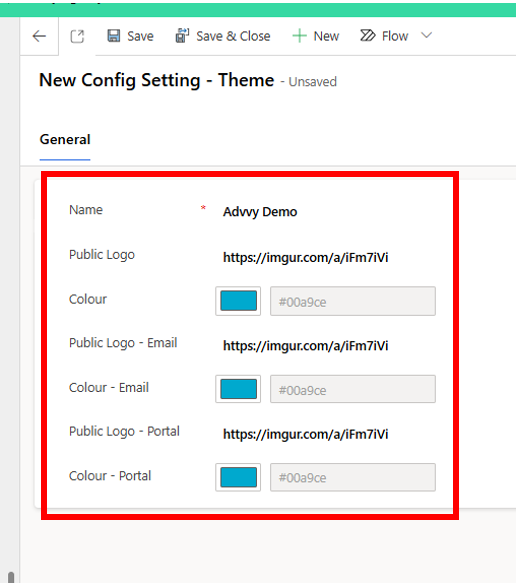
Open Theme Configuration
Fill in Name, and Public Logo URLs and Colours
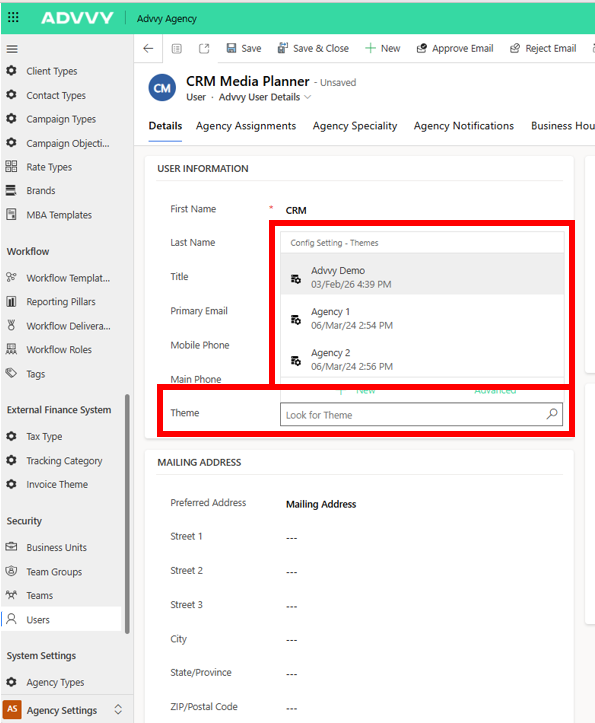
Assign themes to User Contact records (listed under Theme)
Note: You must be an Administrator to create or modify themes.
Assigning Themes to User Contacts
Themes are assigned at the User Contact level and determine which branding is applied when a client:
Accesses the Client Portal
Receives reports
Receives client-facing emails
Bulk Theme Assignment (Optional)
For bulk theme updates across multiple contacts:
Open Advanced Find
Select Contacts
Add the Theme column
Export the results to Excel (or Excel Online)
Populate the Theme field for each contact
Save and re-upload the file
This method allows efficient assignment of branding across large contact lists.
Theming Levels and Priority Logic
Advvy applies client portal branding using a tiered hierarchy.
Each level is evaluated in order, and the first available configuration is used.
Branding Priority Order
Theme Configuration (highest priority)
Client Record Public Logo
Global Settings (base tier)
If a higher-priority option is not configured, Advvy automatically falls back to the next level.
Theme Configuration (1st Preference)
When a Theme is assigned, it always takes precedence over all other branding settings.
Themes control:
Public Logo URL (General)
Public Logo – Email
(Displayed in client-facing emails)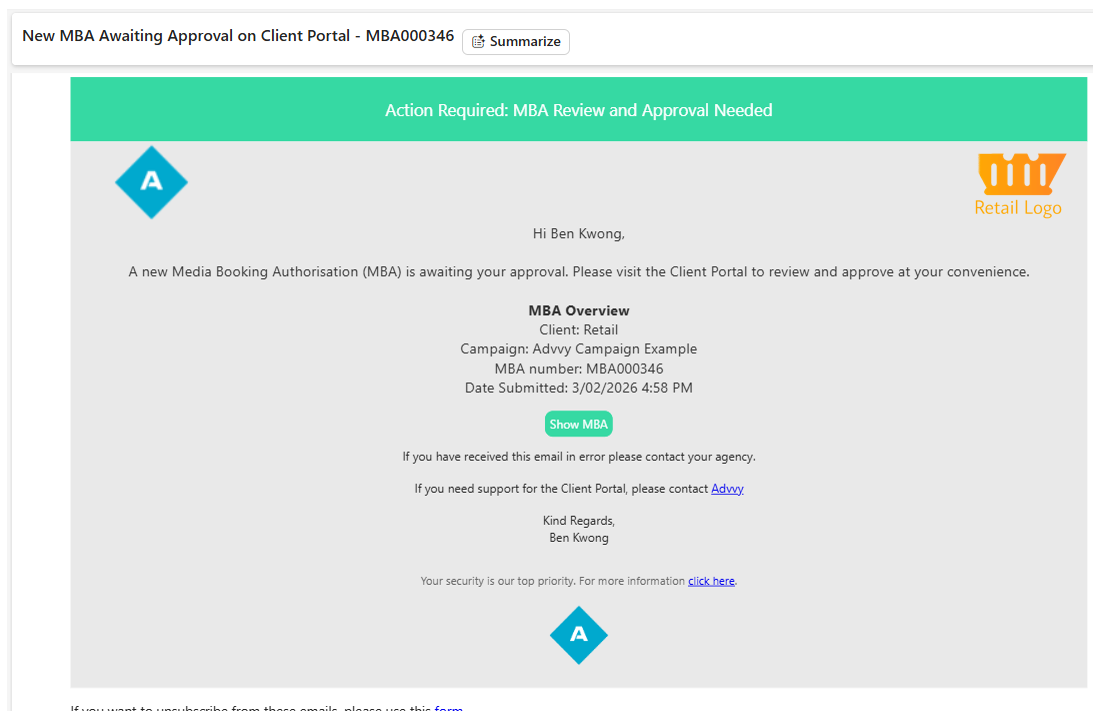
Public Logo – Portal
(Displayed in the Client Portal)
If a Theme exists, all client-facing branding is sourced from the Theme configuration.
Client Record Branding (2nd Preference)
If no Theme is assigned, Advvy checks the Client Record.
Client Record branding uses:
Client Record Public Logo
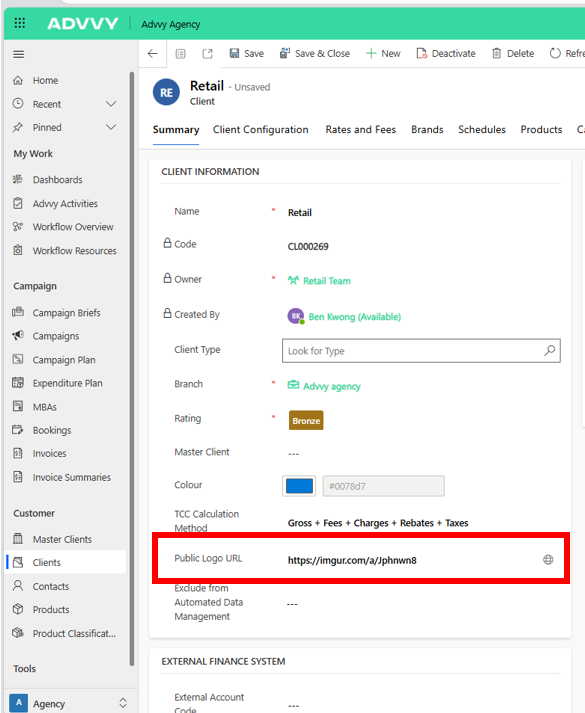
Important notes:
The Client Record Public Logo applies only to:
Reports
Email communications
It does not apply to the Client Portal
If the Client Record Public Logo is blank, Advvy falls back to Global Settings.
Global Settings (Base Tier)
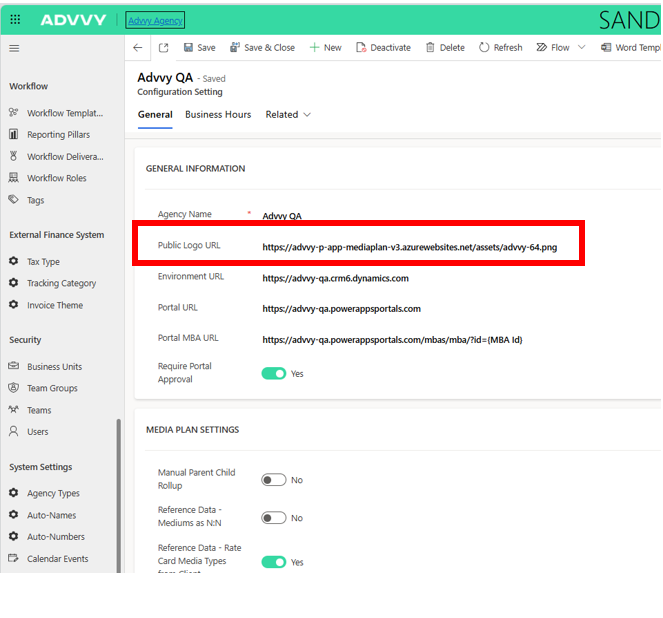
If neither a Theme nor a Client Record Public Logo is configured, Advvy applies branding from Global Settings.
Global branding is configured at:
Configuration Settings (top of the page)
This acts as the default branding layer and is applied across all client-facing content when no higher-level branding exists.
Branding Fallback Logic Summary
Branding is applied using the following logic:
If a Theme exists → use Theme branding
Else, if Client Record Public Logo exists → use Client Record branding
Else → use Global Settings branding
This ensures consistent branding behaviour across portals, reports, and emails.
Was this article helpful?
That’s Great!
Thank you for your feedback
Sorry! We couldn't be helpful
Thank you for your feedback
Feedback sent
We appreciate your effort and will try to fix the article