Overview
MBA Templates define how Media Buying Authorisation (MBA) documents are generated in Advvy.
Templates control:
The document format
The file naming structure
Which template applies to specific clients
Whether the template uses a standard document template or a Power BI paginated report
These templates ensure MBAs are generated with the correct branding, structure, and reporting format.
⚠️ Note: MBA Templates should only be configured by administrators.
Where to Configure MBA Templates
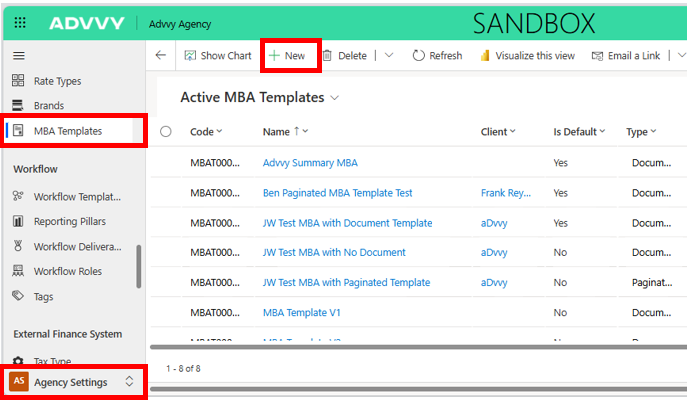
MBA templates are configured in Agency Settings.
To access the configuration area:
Navigate to Site Map
Select Agency Settings
Open MBA Templates
Click New
This will open the MBA Template configuration form.
MBA Template Fields
The following fields must be configured when creating a template.
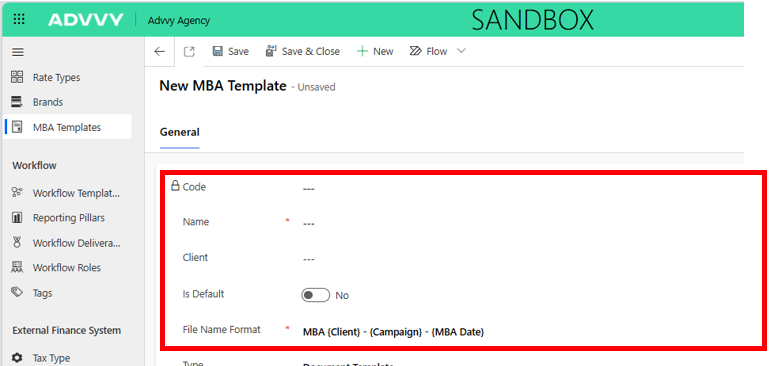
Code
A unique identifier for the template within Advvy.
Example:MBA000015
Name
The display name of the MBA template.
Example:Standard MBA Template
Client
Specifies whether the template applies to a specific client.
Leave blank → Template available to all clients
Select a client → Template applies only to that client
Is Default
When enabled, this template will automatically be selected when creating a new MBA.
This ensures a consistent template is used across campaigns.
File Name Format
Defines how the generated MBA file will be named.
This helps agencies maintain consistent naming conventions when exporting or sending documents.
Example format may include:
Campaign name
Client name
MBA Date
Template Type
The Type field determines how the MBA document is generated.
Two options are available:
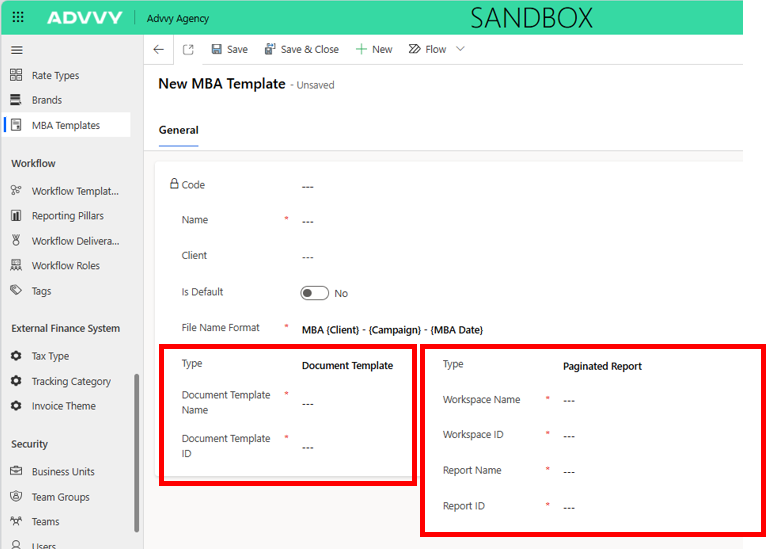
Document Template
Uses a standard document template stored in Advvy.
When this option is selected, the following fields appear:
Document Template Name
The name of the document template used to generate the MBA.
Document Template ID
The unique ID associated with the document template.
Paginated Report
Uses a Power BI Paginated Report to generate the MBA.
This is typically used for more complex or branded layouts.
When this option is selected, the following fields appear:
Workspace Name
Name of the Power BI workspace containing the report.
Workspace ID
Unique identifier for the Power BI workspace.
Report Name
Name of the paginated report used for the MBA.
Report ID
Unique identifier for the paginated report.
Where to Find Power BI IDs
When using Paginated Report templates, the following details must be obtained from Power BI:
Workspace ID
Report ID
These values are available within the URL. Please see example below on how to locate the Workspace and Report ID.
Example: https://app.powerbi.com/groups/297099f6-e084-4c5a-8eb8-9ca51b238729/rdlreports/18dca6b4-178e-4297-849d-b705a06dd14e?experience=power-bi
Your internal reporting or BI team can assist if these values are not readily available.
Best Practices
Use default templates to maintain consistency across campaigns
Create client-specific templates when branding requirements differ
Use paginated reports for complex document layouts
Test templates before using them for live MBA approvals
Was this article helpful?
That’s Great!
Thank you for your feedback
Sorry! We couldn't be helpful
Thank you for your feedback
Feedback sent
We appreciate your effort and will try to fix the article