What is an MBA?
An MBA (Media Buying Authorisation) is a formal document generated from a Campaign record in Advvy. It captures the approved budget details from your campaign and is used to authorise media spend with clients and suppliers.
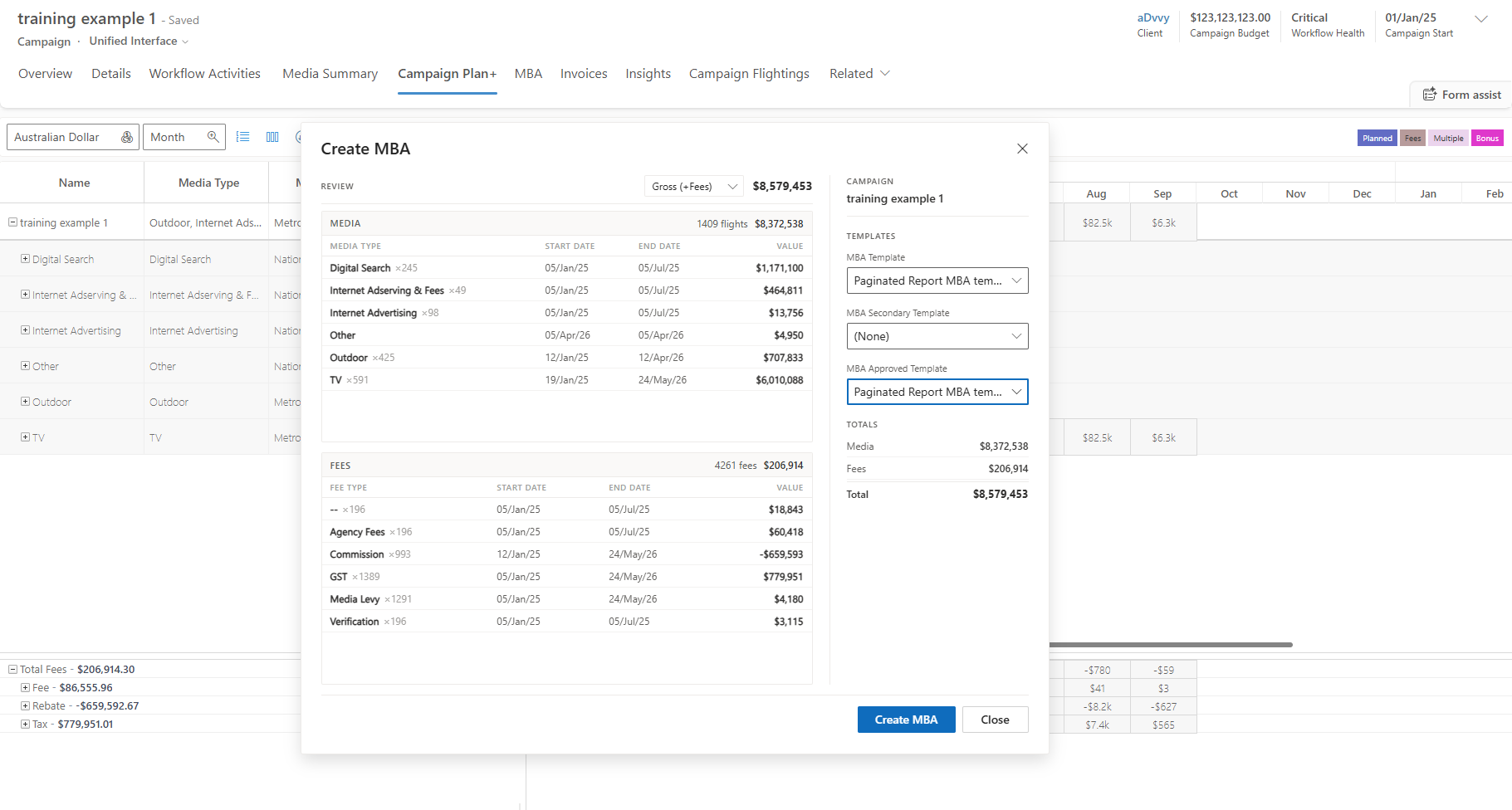
MBAs are not created manually — they are generated from an existing Campaign using the Generate MBA action in Campaign Plan+. The MBA pulls its data from the campaign's flighting and fee flighting records (synced from your Excel media plan via the Advvy Add-in) and captures a snapshot of that data at the point of generation.
Entity name
MBA (a1a_mba)
Created by
Generated from a Campaign record via Campaign Plan+
Location
Campaign → MBA tab (Related Records)
Permissions
Create / Read / Write — No Delete
Can span multiple media types
Yes — an MBA is not restricted to a single media type
Multiple per campaign
Yes — e.g. one per market or period
⚠️
Important: The Campaign must be in a non-Draft status and have required fields populated (Client, Budget, Dates, Product) before you can generate an MBA.
How MBAs Are Generated
MBAs flow from Campaign data — the generation process creates MBA-level records from your campaign's flighting and fee flighting.
Media Plan (Excel)
Planned media activity
synced via Add-in
synced via Add-in
→
Campaign Record
Campaign Flighting +
Campaign Fee Flighting
Campaign Fee Flighting
→
Campaign Plan+
Filter criteria selects
what to include
what to include
→
MBA Generated
MBA Flighting +
MBA Fee Flighting created
MBA Fee Flighting created
When an MBA is generated, Advvy creates MBA Flighting records (from Campaign Flighting) and MBA Fee Flighting records (from Campaign Fee Flighting) based on the Campaign Plan+ filter criteria you selected. These are snapshot records — they capture the campaign data at the point of generation.
The selection criteria (the filter used) is stored on the MBA record under the Selection section. Advvy uses these criteria for matching and automation — if you regenerate an MBA with the same filter, the previous version is automatically retired.
Entity Relationship Map
How the MBA Connects to Other Entities
The MBA is generated from a Campaign. The Campaign is connected to the Client. MBA child records are created from Campaign data at generation time.
Campaign Level
Client Reference
The agency's client — connected to the Campaign, not directly to the MBA.
Read-only
Campaign Parent
The MBA's parent record. The MBA is generated from the Campaign via Campaign Plan+.
CRW— (No Delete)
Campaign Flighting Source
Weekly media activity records synced from Excel. MBA Flighting is created from this data.
CRUD (Full)
Campaign Fee Flighting Source
Time-based fee allocations synced from Excel. MBA Fee Flighting is created from this data.
CRUD (Full)
→
MBA Level
MBA Core
The generated authorisation document — budget, dates, media plan summary, approval status, selection criteria. Can span multiple media types.
CRW— (No Delete)
MBA Flighting Child
Created from Campaign Flighting at generation. Media plan line items captured as a snapshot.
CRW— (No Delete)
MBA Fee Flighting Child
Created from Campaign Fee Flighting at generation. Fee allocations captured as a snapshot.
CRW— (No Delete)
MBA Summary Child
Aggregated financial snapshot — totals calculated from MBA Flighting and MBA Fee Flighting.
CRW— (No Delete)
→
Outputs
MBA Template Template
Word doc / paginated report layout template. Controls which MBA fields are displayed and how, configured per client.
CR—— (Create/Read only)
Client Portal Output
MBA published to the portal for client review and approval once status is "Awaiting Approval".
Paginated Report / Word Doc Output
Formatted document auto-generated using the MBA Template layout. Attached to the Notes tab on the MBA record.
ℹ️
Key relationship: The MBA is connected to the Campaign. The Campaign is connected to the Client. The MBA inherits its client context through the Campaign — it does not link to the Client directly.
What the MBA Record Lets You Do
Capabilities
The MBA isn't just a data snapshot — it unlocks several key platform capabilities.
The MBA captures approved budget details from the campaign — gross and net amounts, date ranges, flighting and fee data — into a formal authorisation document.
Setting status to "Awaiting Approval" automatically emails Contact 1, Agency Contact, Client Contact, and the submitting user — with a direct link to the Client Portal.
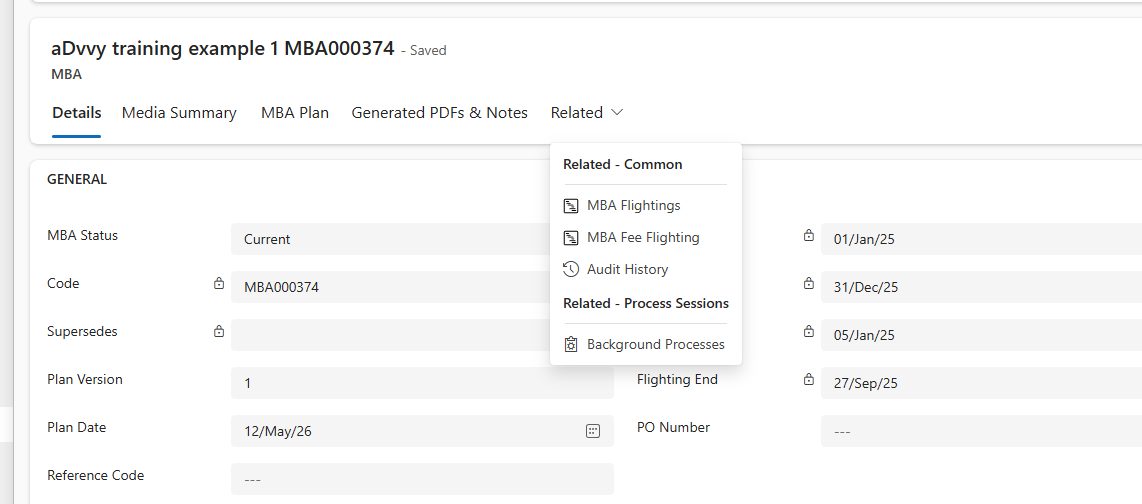
When status changes to "Awaiting Approval", Advvy auto-generates a formatted MBA document using the MBA Template (which controls the layout and fields displayed per client). The document is attached to the Notes tab.
The MBA becomes visible in the Client Portal once set to "Awaiting Approval". Clients can view media items, dates, costs, fees, download documents, add comments, and formally Approve or Reject.
Regenerating an MBA with the same Campaign Plan+ filter criteria automatically retires the previous version — set to Superseded or Internally Replaced.
All client actions (approve, reject, comments) and all status changes are recorded against the MBA for tracking, compliance, and audit purposes.
How the MBA Connects Across the System
System Connections
MBA Lifecycle — Statuses
MBA Statuses Explained
Each status controls what the MBA does in the system — who sees it, what triggers, and how it's treated.
Current
Active internally
not visible to client
not visible to client
→
Awaiting Approval
Triggers emails
+ report + portal
+ report + portal
→
Approved
Client approved
visible in portal
visible in portal
ℹ️
Key point: "Awaiting Approval" is the critical trigger — it's what sends the MBA to the client, generates the formal document (using the MBA Template), and makes it visible in the portal. Until you set this status, the MBA stays internal.
MBA in the Client Portal
When a client receives the email notification and opens the MBA link, they land in the Advvy Client Portal where they can review all MBA details, access the generated document, provide feedback via comments, and formally Approve or Reject.
What clients can view
Media items, dates, flighting, costs, fees, totals, attached documents
What clients can do
Add comments, Approve, or Reject
What clients cannot do
Edit MBA data — changes must be made internally
Visibility rule
Only "Awaiting Approval" or later statuses
Client actions are immediately reflected in Advvy. When a client approves, the status updates to Approved. When rejected, it updates to Rejected. All actions are recorded for audit.
Matching & Version Management
Advvy includes built-in matching logic to prevent duplicate or conflicting MBAs. When you regenerate an MBA using the same Campaign Plan+ filter criteria as an existing MBA, the older version is automatically retired.
New MBA Generated
Same filter criteria
as existing MBA
as existing MBA
→
Match Detected
Advvy checks selection
criteria on existing MBAs
criteria on existing MBAs
→
Previous MBA Retired
Set to Superseded or
Internally Replaced
Internally Replaced
Superseded — the previous MBA had already been sent to the client. Retained for reference but hidden from the portal. Internally Replaced — the previous MBA was replaced before the client ever saw it.
Matching is based on how the MBA was selected (the filter criteria), not the underlying data values. View the criteria on any MBA under the Selection section at the bottom of the record.
Tip: Reuse consistent filters when regenerating MBAs. Avoid creating overlapping MBAs with slightly different filters unless intentional — otherwise Advvy won't detect them as duplicates and both will remain active.
Permissions
MBA Entity Family — CRUD Permissions
Standard Team level permissions for the MBA and all related entities.
⚠️
No Delete on any MBA entity. Standard Team users cannot delete the MBA or any of its child records. MBA Templates are further restricted — Create/Read only, no editing after creation. If a record needs removing, contact your admin.
Key Takeaways
1
MBAs are generated from Campaign records. They're formal authorisation documents. MBA Flighting is created from Campaign Flighting; MBA Fee Flighting is created from Campaign Fee Flighting — both are snapshots captured at generation.
2
The MBA connects to the Campaign, not the Client directly. The Campaign is connected to the Client. The MBA inherits its client context through the Campaign.
3
An MBA can span multiple media types. There is no separate MBA media type entity — the MBA captures whatever media types are included via the Campaign Plan+ filter.
4
"Awaiting Approval" is the key trigger. It sends emails, generates the MBA document (using the MBA Template layout), and makes the MBA visible in the Client Portal.
5
MBA Templates control the document layout. They define which fields are displayed and how the Word doc / paginated report is structured — configured per client.
6
Versioning is automatic. Same filter criteria on a new MBA → older MBA auto-set to Superseded or Internally Replaced.
7
No Delete across the entire MBA family. Standard users can create and edit but never delete. Templates are Create/Read only.
Was this article helpful?
That’s Great!
Thank you for your feedback
Sorry! We couldn't be helpful
Thank you for your feedback
Feedback sent
We appreciate your effort and will try to fix the article