Overview
What this article covers
The Advvy Client Portal gives you a secure window into your advertising campaigns — all in one place. Through the portal you can review active campaigns, explore media plans, view and approve Media Buying Authorisations (MBAs), and download documents.
This article walks through every section of the portal so you know exactly where to go and what to expect.
Tip: If you're missing access or can't see campaigns you're expecting, reach out to your agency — they control what is shared with you through the portal.
Signing In to Your Portal
Three steps to access your Client Portal
1
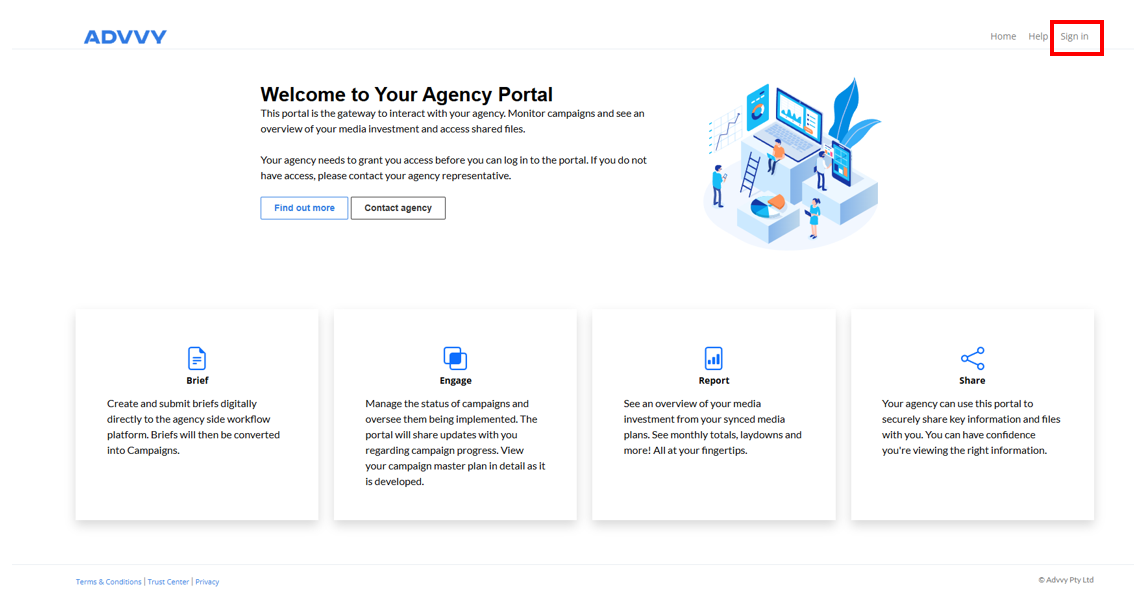
Go to your portalOpen your browser and navigate to the Client Portal URL provided by your agency.
2
Click Sign InIn the top-right corner of the homepage, click Sign In.
3
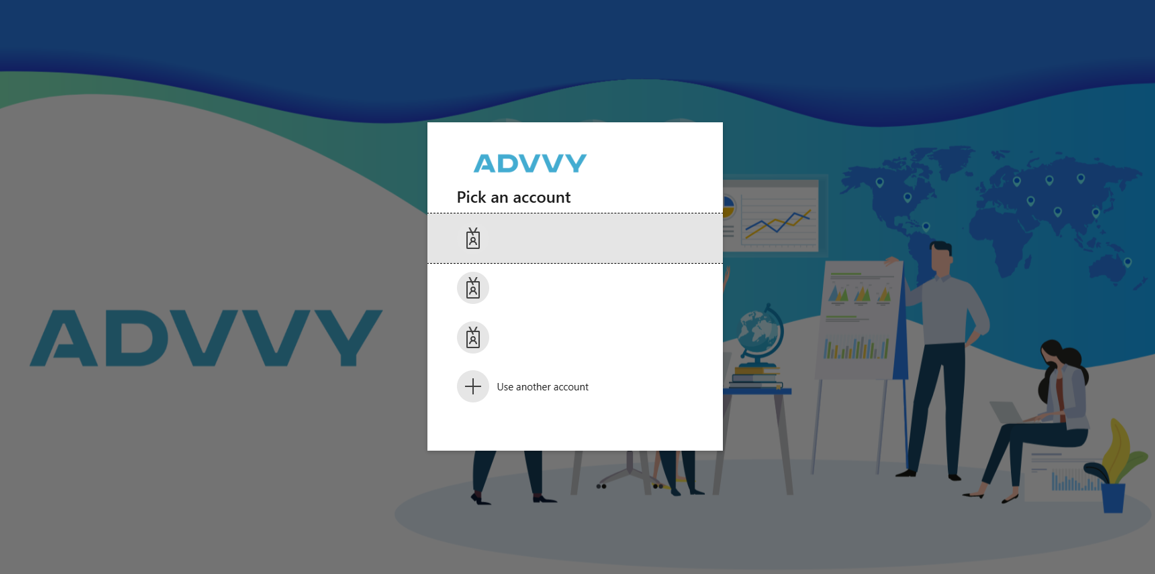
Log in with MicrosoftYou'll be taken to a Microsoft Entra sign-in page. Enter your email and password, then follow any additional prompts (e.g. two-factor authentication). Once signed in, you'll land on your Campaigns list.
Tip: Your login uses the same Microsoft account you use for your work email. Contact your agency if you're unsure which email to use.
Viewing Your Campaigns
Find and open any campaign shared with you
1
Go to CampaignsThe Campaigns list loads automatically after sign-in. Return to it at any time from the top navigation.
2
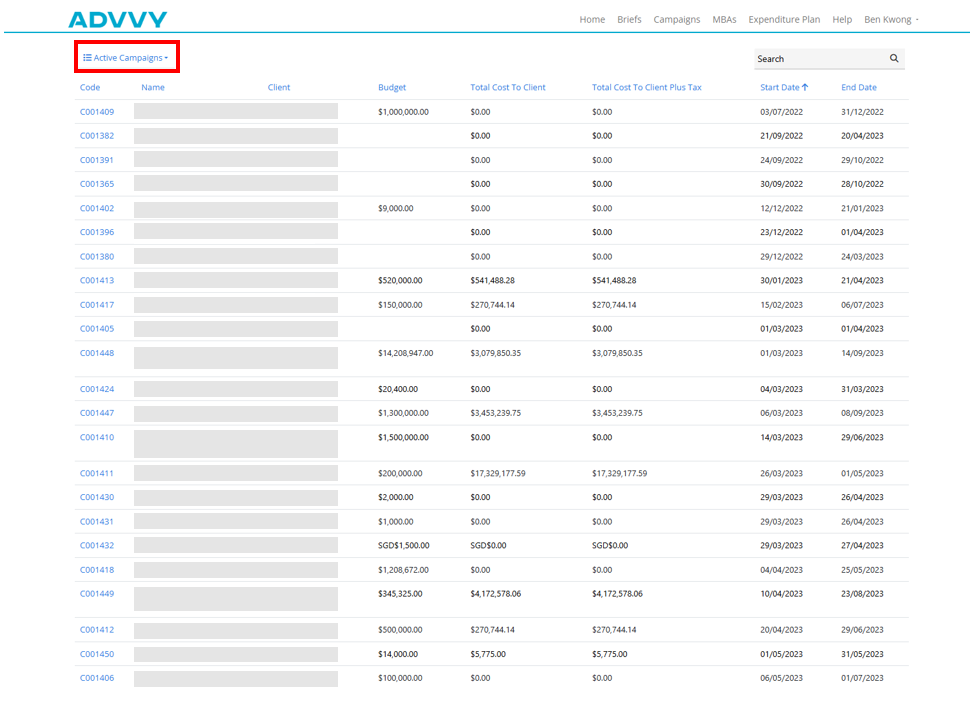
Filter by statusBy default you'll see Active campaigns. Use the filter on the left to switch between Active and Inactive.
3
Read the campaign listEach row shows the following information:
| Column | What it means |
|---|
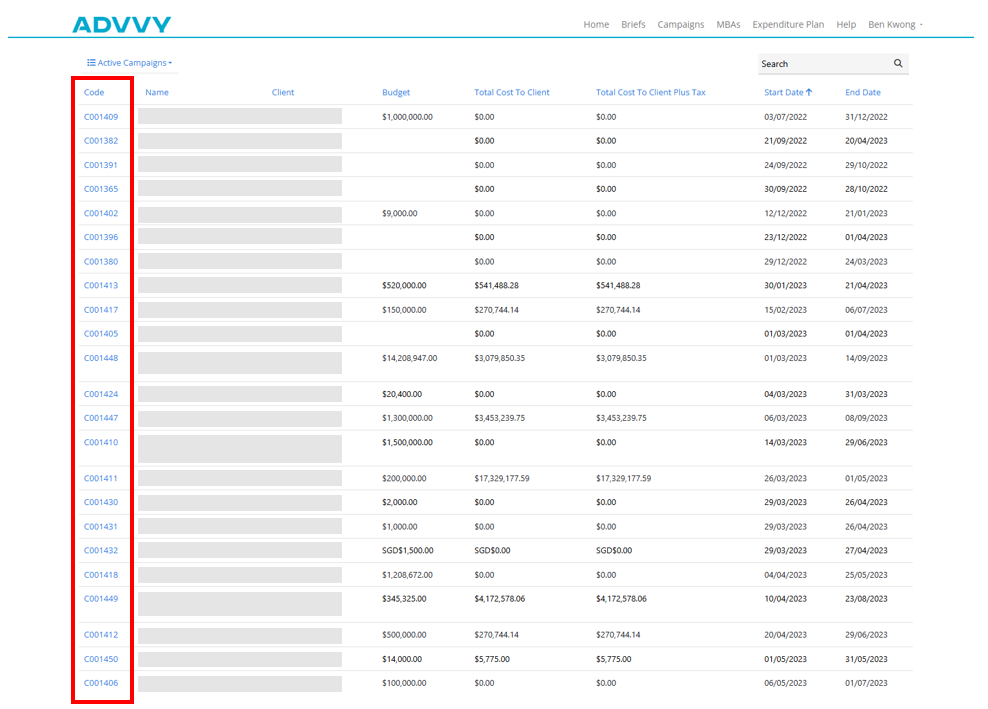
| Code | The unique campaign identifier — click to open the campaign |
| Name | The campaign name |
| Client | The client the campaign sits under |
| Budget | The total campaign budget |
| Total Cost to Client | Your cost before tax |
| Cost to Client + Tax | Your full cost including tax |
| Start Date / End Date | When the campaign runs |
4
Open a campaignClick on a campaign code (shown in blue) to open the full campaign view.
Inside a Campaign
Four tabs give you everything you need
Once you've opened a campaign you'll see four tabs: Details, Plan, MBAs, and Attachments.
Details Tab
Campaign summary · All data configured by your agency
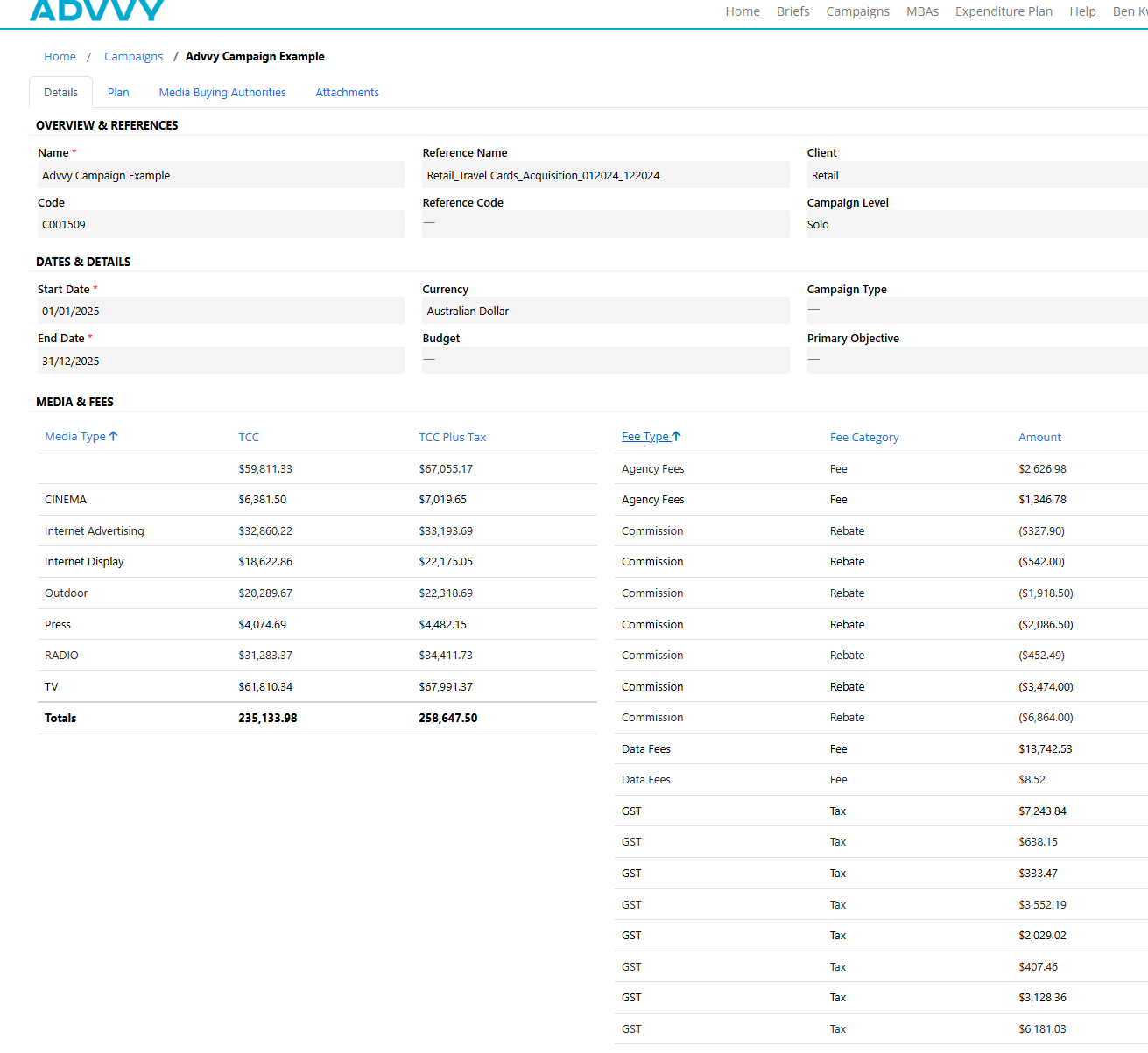
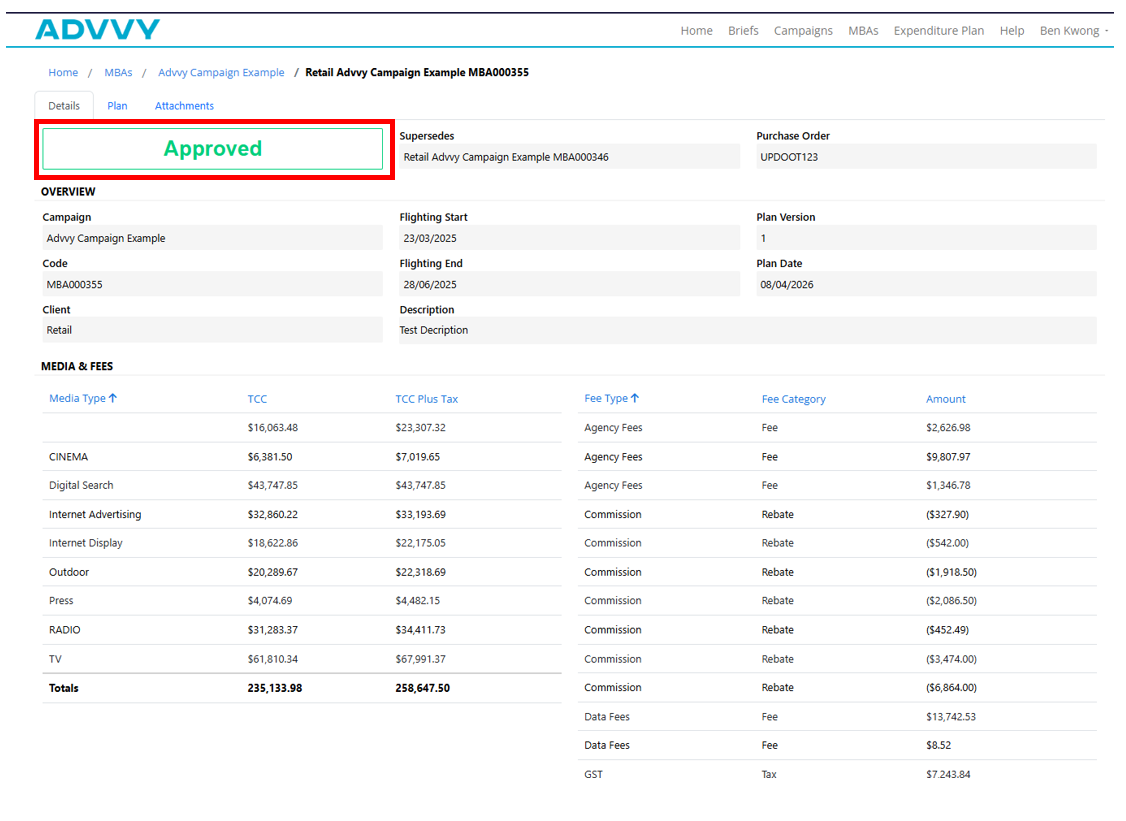
The Details tab gives you a full summary of your campaign — dates, budget, media channels, and fees.
Overview & References
Campaign name, reference name, client, campaign code, and campaign level (Solo / Parent / Child)
Dates & Details
Start & end dates, currency, budget, campaign type, and primary objective
Media table (left)
Budget split by channel — e.g. Digital Display, Paid Search, Paid Social — with TCC and TCC+Tax
Fees table (right)
Fee breakdown by type — fee, charge, tax, or rebate — with corresponding amounts
Tip: All campaign details are configured by your agency in Advvy. If anything looks incorrect, contact your agency to get it updated.
Plan Tab
Visual media timeline · Interactive and exportable
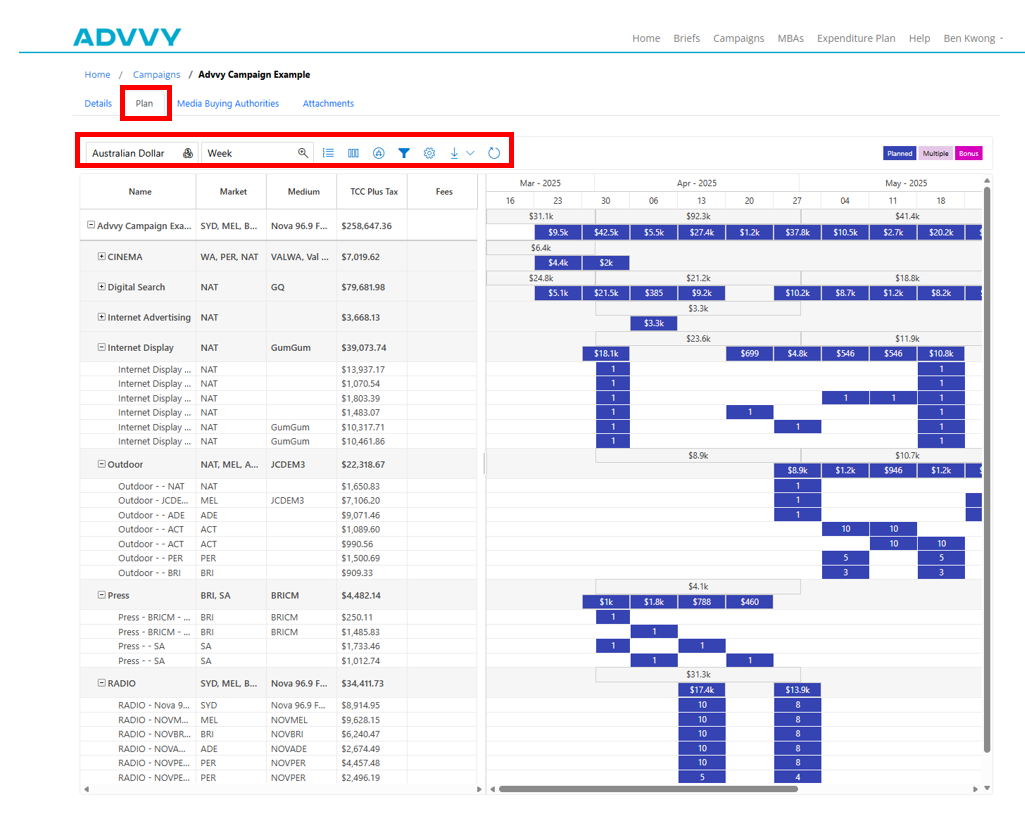
The Plan tab shows a Gantt-style timeline of your campaign's media activity. All controls are view-only — nothing can be edited.
Currency
Switch display currency (AUD, SGD, INR, etc.)
Zoom level
View by Week, Month, or Year
Grouping
Group flights by Market or Media Type — click + to expand
Columns
Add or remove data columns — click and drag to reorder
Quick Filters
Filter by media type — select options then click Apply
Export
Download as PNG or PDF — loading screen appears, then click Download
Refresh Data
Pull in the latest data if the plan has been open a while
Tip: Use the Refresh Data button if you think you're not seeing the latest activity — it re-fetches the most current data from your agency's system.
MBAs Tab
Media Buying Authorisations · All MBAs for this campaign
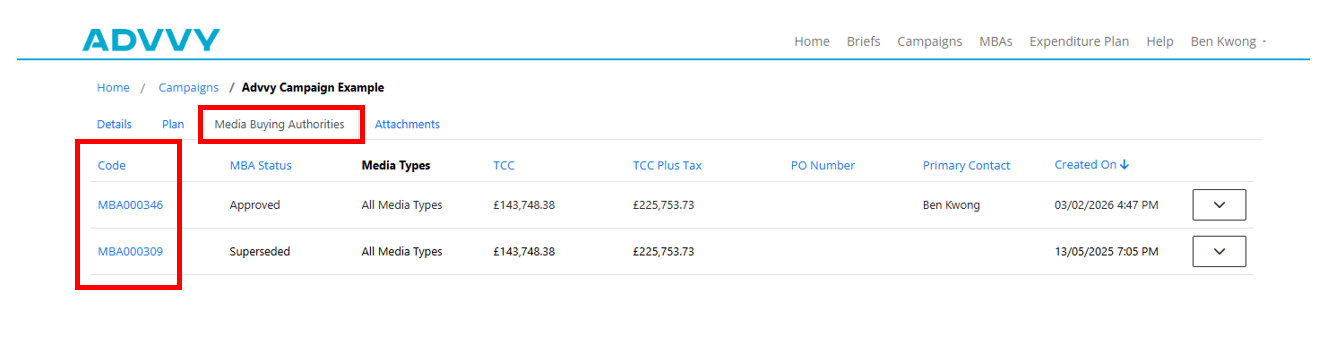
MBAs are the formal documents your agency uses to get your approval on media spend. This tab shows all MBAs linked to this campaign.
MBA Number
Click to open full MBA details
Status
Approved / Awaiting Approval / Superseded
TCC / TCC + Tax
Total cost to you before and after tax
PO Number
Your purchase order number (if provided)
Plan tab (inside MBA)
Shows only the activity in this MBA — not the full campaign
Attachments tab (inside MBA)
Download the formal MBA document from here
Attachments Tab
Campaign-level documents
Shows any documents your agency has attached directly to the campaign. If empty, no campaign-level attachments have been added yet.
Approving an MBA
How to review and approve media spend — step by step
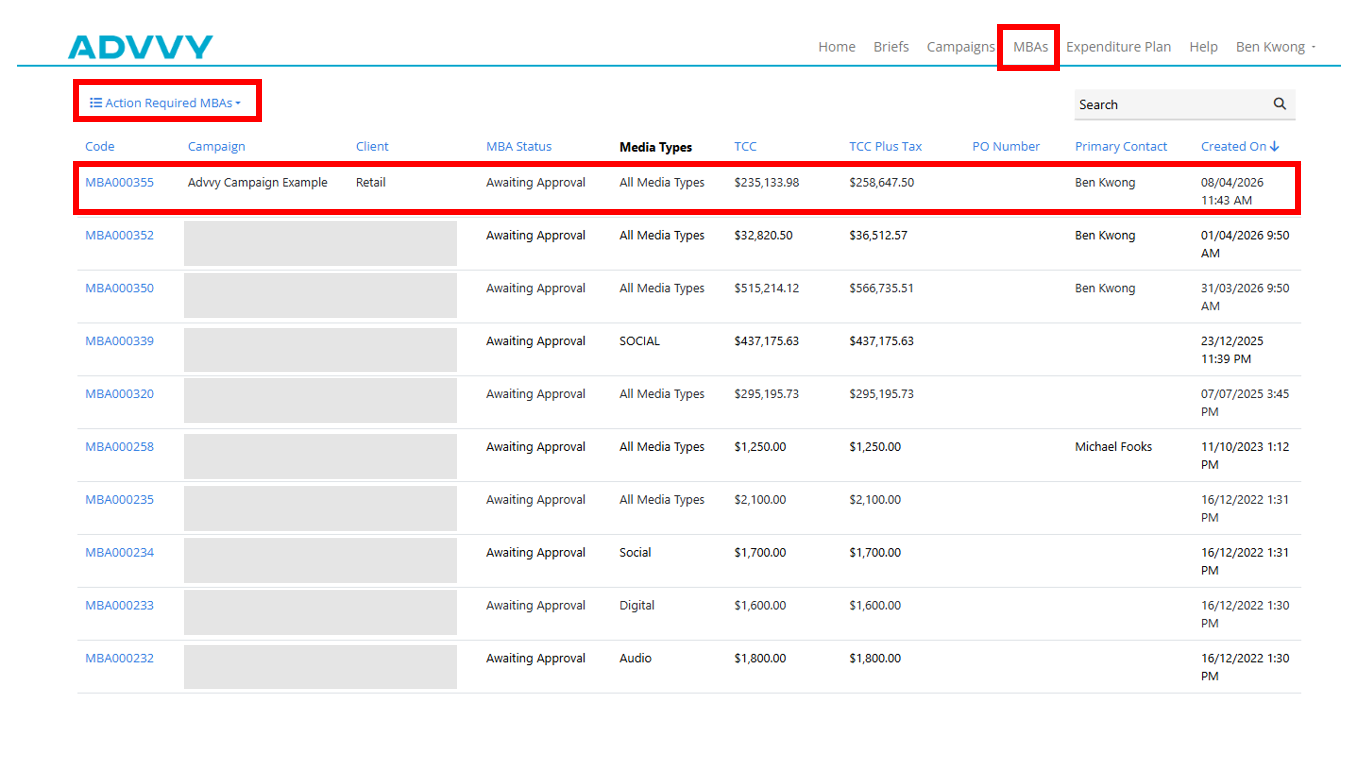
MBAs waiting for your sign-off appear in the MBAs section in the top navigation (not inside a specific campaign).
1
Go to the MBAs sectionClick MBAs in the top navigation. You'll see two lists: Action Required (awaiting your approval) and Recent (recently reviewed).
2
Open an MBA awaiting approvalClick on an MBA from the Action Required list to open it and see the full media plan.
3
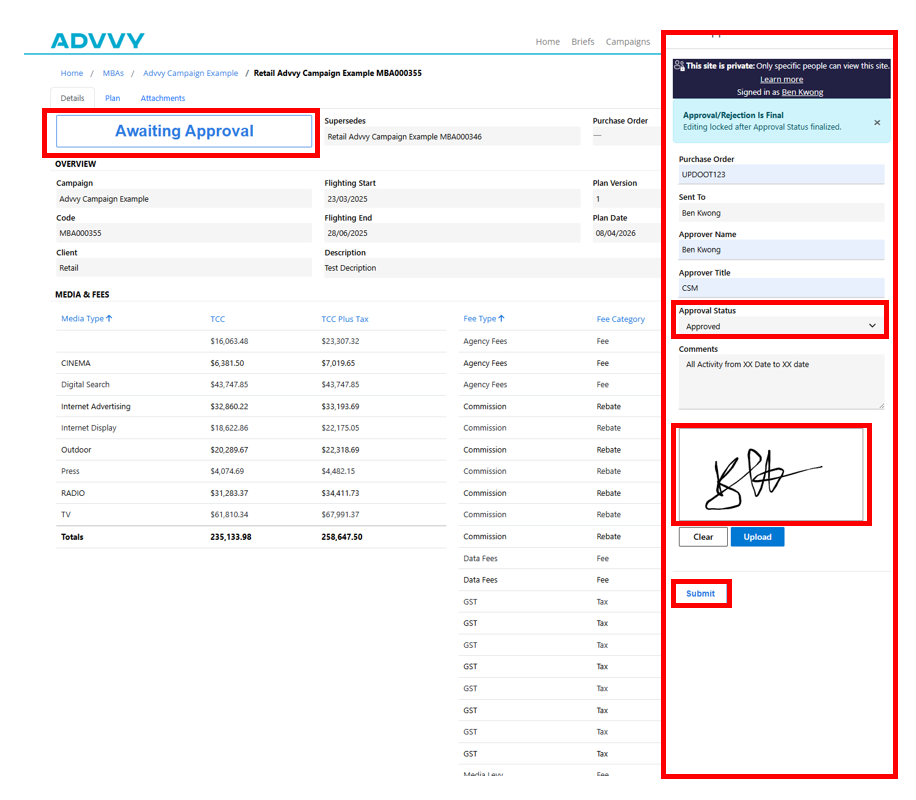
Start the approvalClick the Awaiting Approval button. An approval panel slides in from the right.
4
Complete the approval formFill in the fields below:
| Field | Required? | What to enter |
|---|
| Purchase Order | Optional | Your PO number if applicable |
| Approval Name | Required | Your full name |
| Approval Title | Required | Your job title |
| Approval Status | Required | Select the appropriate status |
| Comments | Optional | Any notes or feedback |
| Signature | Required | Type your name, draw it, or upload a signature image |
5
Submit your approvalClick Submit. You'll receive a confirmation and the MBA status will update to Approved immediately. It will be removed from your Action Required list.
Tip: Once you submit, your approval is recorded instantly. You do not need to do anything else — your agency will be notified automatically.
Expenditure Plan
A high-level view of all your campaigns at once
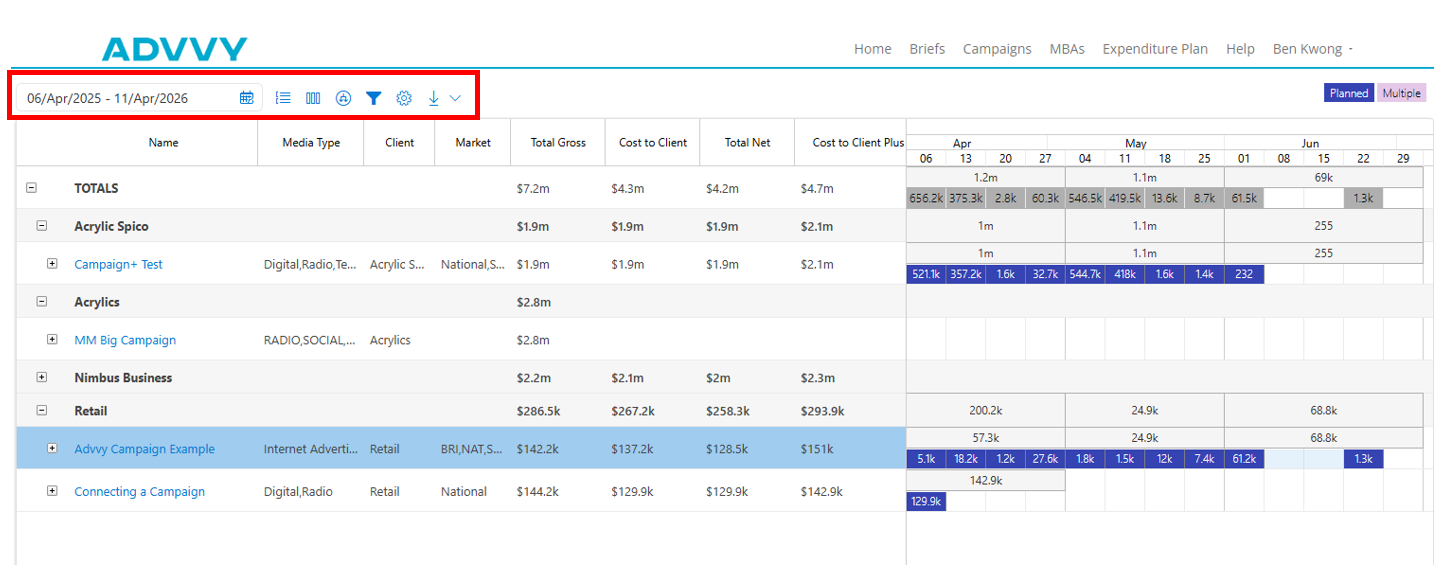
The Expenditure Plan shows all your campaigns in one timeline — useful for tracking overall spend across your full portfolio rather than one campaign at a time.
| Feature | What it does |
|---|
| Date filter (left) | Set the date range you want to review |
| Group By | Organise campaigns by Master Client or Client |
| Columns | Choose which spend columns to display — click and drag to reorder |
| Drill Down | Expand from group level down to Campaigns, then Flighting |
| Quick Filters | Filter by campaign type (e.g. solo campaigns, child campaigns) |
| Export | Download as PDF or PNG using the Download button |
Tip: Drilling down to Flighting level in the Expenditure Plan may take a few seconds — it's loading a larger dataset than the per-campaign view. This is normal.
Navigating the Portal
Quick reference for all navigation elements
| Navigation item | Where it takes you |
|---|
| Logo | Returns you to the portal homepage |
| Home breadcrumb | Returns you to the homepage from any sub-page |
| Help | Opens the Advvy Help Centre |
| Sign In | Microsoft Entra authentication page |
| Campaigns (nav) | Your full list of campaigns |
| MBAs (nav) | Your full MBA list (Action Required and Recent) |
| Expenditure Plan | Your cross-campaign spend overview |
Tip: Use the breadcrumbs at the top of any page to navigate back without losing your place.
Key Takeaways
1
Sign in with your Microsoft account — your agency provides the portal URL and sets up your access.
2
The Campaigns section is your main hub — it shows all active campaigns your agency has shared with you.
3
The Plan tab is fully interactive — use filters, groupings, zoom levels, and export to PNG or PDF.
4
MBAs are your approval documents — check the MBAs section regularly for items requiring your sign-off.
5
The Expenditure Plan gives you the big picture — view spend across all your campaigns at once.
6
If anything looks wrong or is missing, contact your agency — they manage what you see in the portal.