Overview
What this article covers
The Advvy Client Portal is a dedicated view your clients use to review campaigns, explore media plans, and approve MBAs. As an agency team member, you won't typically use the portal day-to-day — but understanding how it works means you can set client expectations, troubleshoot issues, and confirm what clients see is accurate.
⚠️Important: The Client Portal is a read-focused view. Clients can view and approve, but they cannot create or edit campaigns, plans, or MBAs. All content they see comes directly from Advvy.
What Clients See: The Homepage
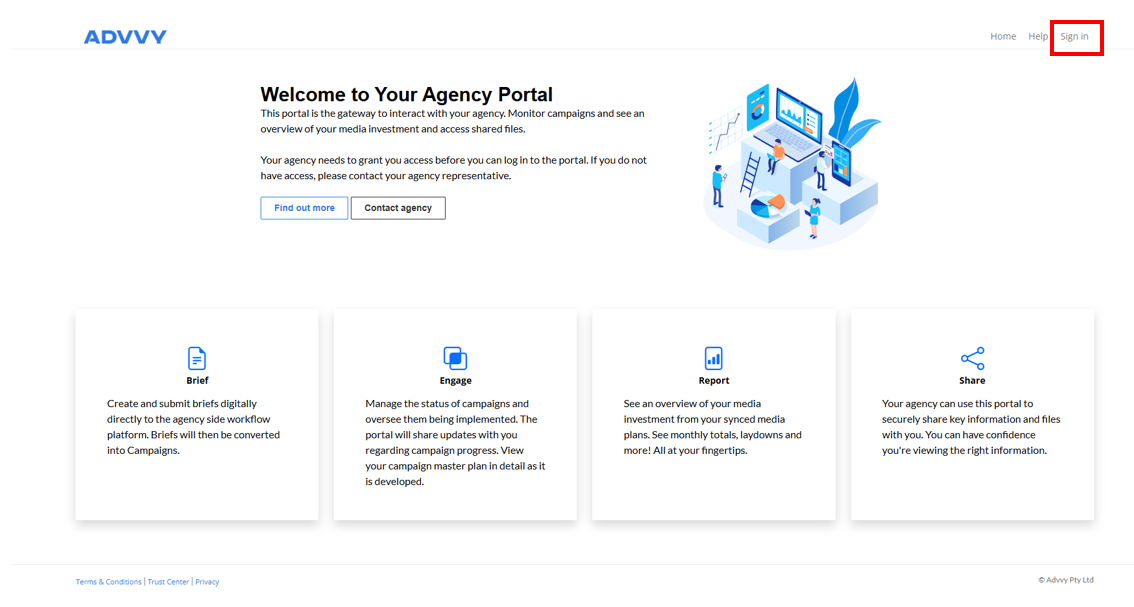
The portal landing page before login
When a client visits the portal URL before signing in, they see the portal homepage. Your agency controls all the content on this page.
Homepage Elements
Pre-login · All configured by your agency
Every element on the client homepage is managed by your agency team. Make sure these are set up before onboarding a new client.
Information Tiles ×4
Customisable panels — configure with your Advvy rep
Find Out More button
Links to a URL your agency sets — defaults to advvy.com
Contact Agency button
Links to your agency's page or contact details
Sign In button
Top-right corner — takes clients to Microsoft Entra login
Tip: Make sure your client-facing homepage tiles and links are configured before onboarding a new client — it's the first thing they'll see.
Client Sign-In
Authentication via Microsoft Entra
Clients sign in using Microsoft Entra (Azure AD). When they click Sign In they are taken to a standard Microsoft login screen. Once authenticated, they land directly on the Campaigns list.
Access Provisioning
Managed in Advvy · Not in the portal
Client access is provisioned in Advvy by your admin team. If a client cannot sign in or sees no data, the fix is always in Advvy — not in the portal itself.
Method
Microsoft Entra (Azure AD) SSO
Provisioned in
Advvy — client user assigned to client record(s)
Can't sign in?
Escalate to your platform admin
No campaigns after login?
Check client record assignment in Advvy
The Campaigns List
What clients see after signing in
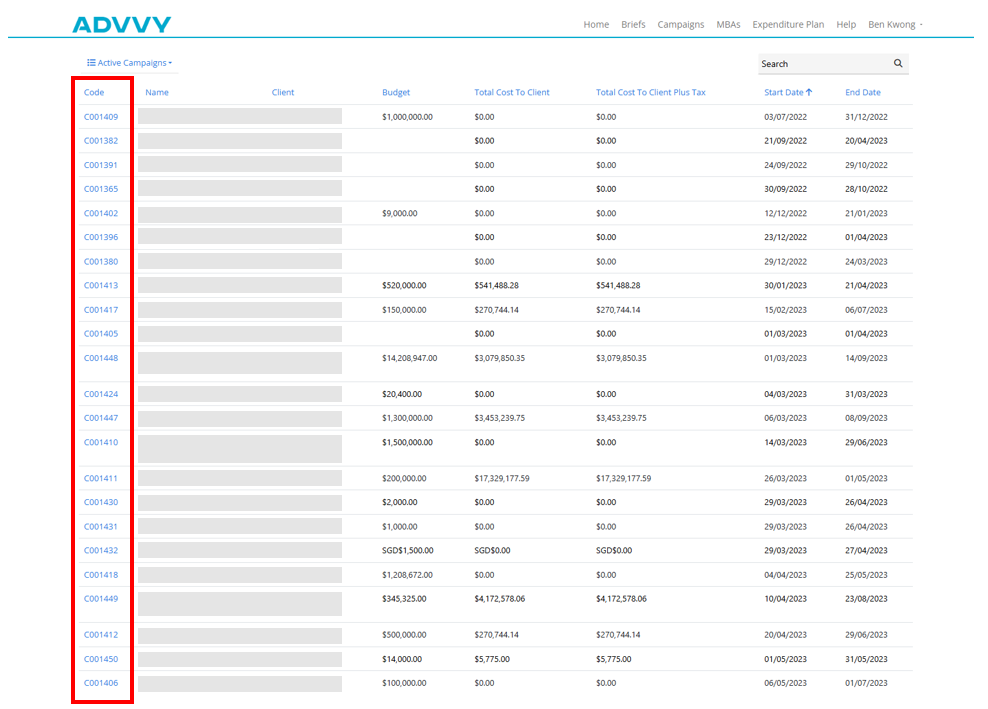
After signing in, clients see a list of all campaigns assigned to them. The default view shows active campaigns only. They can toggle to inactive using the filter on the left.
All data in the Campaigns list is sourced directly from Advvy:
| Column displayed to client | Source in Advvy |
|---|
| Campaign Code | Campaign.code (clickable link) |
| Campaign Name | Campaign.name |
| Client | Client.name linked to campaign |
| Budget | Campaign.budget |
| Total Cost to Client | Aggregated TCC from all flighting records |
| Cost to Client + Tax | TCC + calculated tax from flightings |
| Start Date / End Date | Campaign.start_date / Campaign.end_date |
⚠️Important: If a client says they can't see a campaign, check the campaign is correctly assigned to their client record in Advvy and that the status is set to active.
Inside a Campaign — The Four Tabs
What clients see when they open a campaign
Clients open a campaign by clicking its campaign code. Inside, they see four tabs: Details, Plan, MBAs, and Attachments.
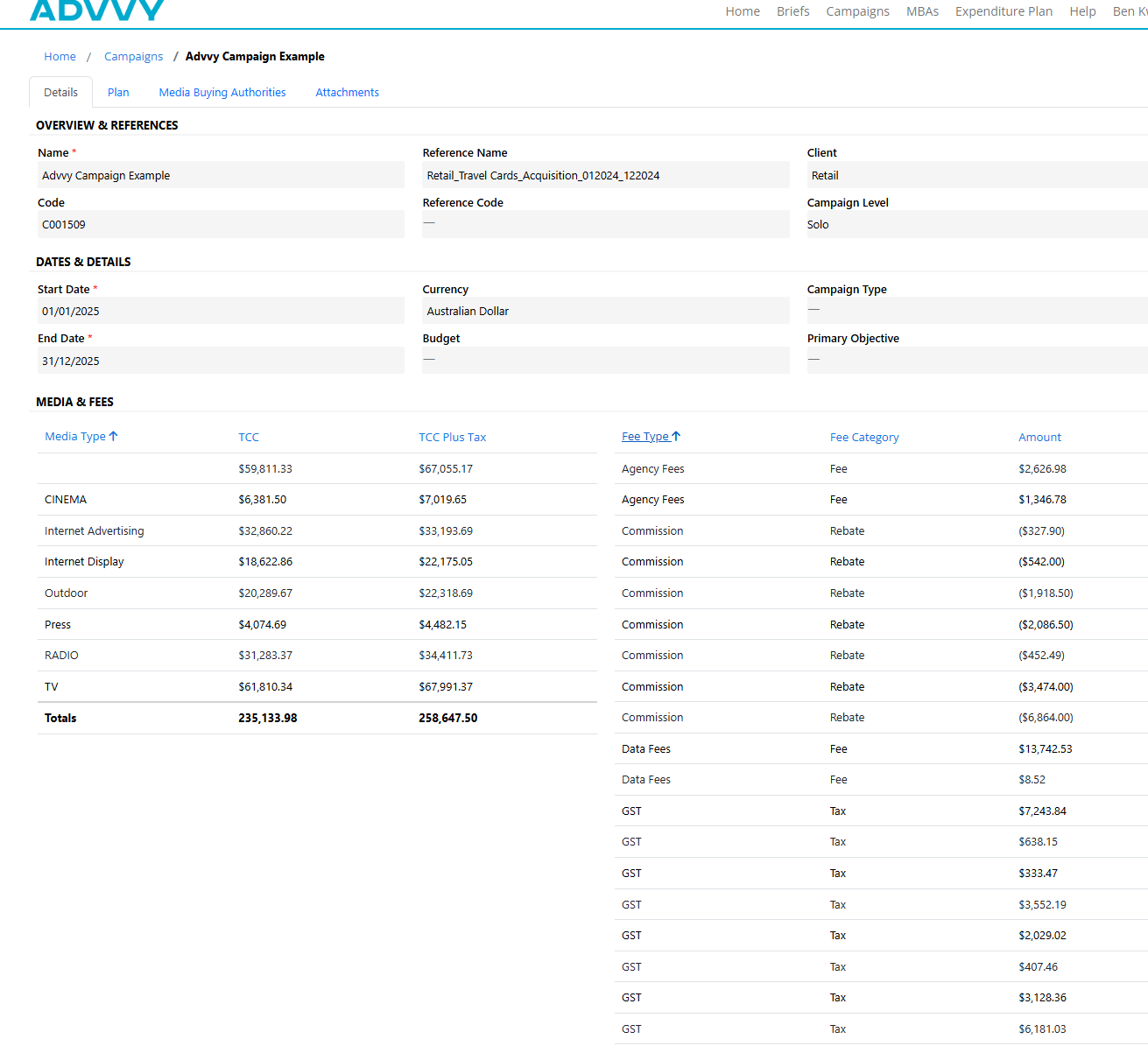
Details Tab
Overview · Dates & Details · Media & Fees tables
All data here pulls directly from Advvy campaign records. If a client reports incorrect data, the fix must be made in Advvy first.
Overview & Refs
Name, reference name, client, code, and campaign level (Solo / Parent / Child)
Dates & Details
Start & end dates, currency, budget, campaign type, primary objective
Media table (left)
Flighting records grouped by media type → TCC and TCC+Tax per channel
Fees table (right)
Fee Flighting records grouped by type → fee / charge / tax / rebate
Tip: Incorrect data on the Details tab always means the source data in Advvy needs updating. Check the campaign record first.
Plan Tab
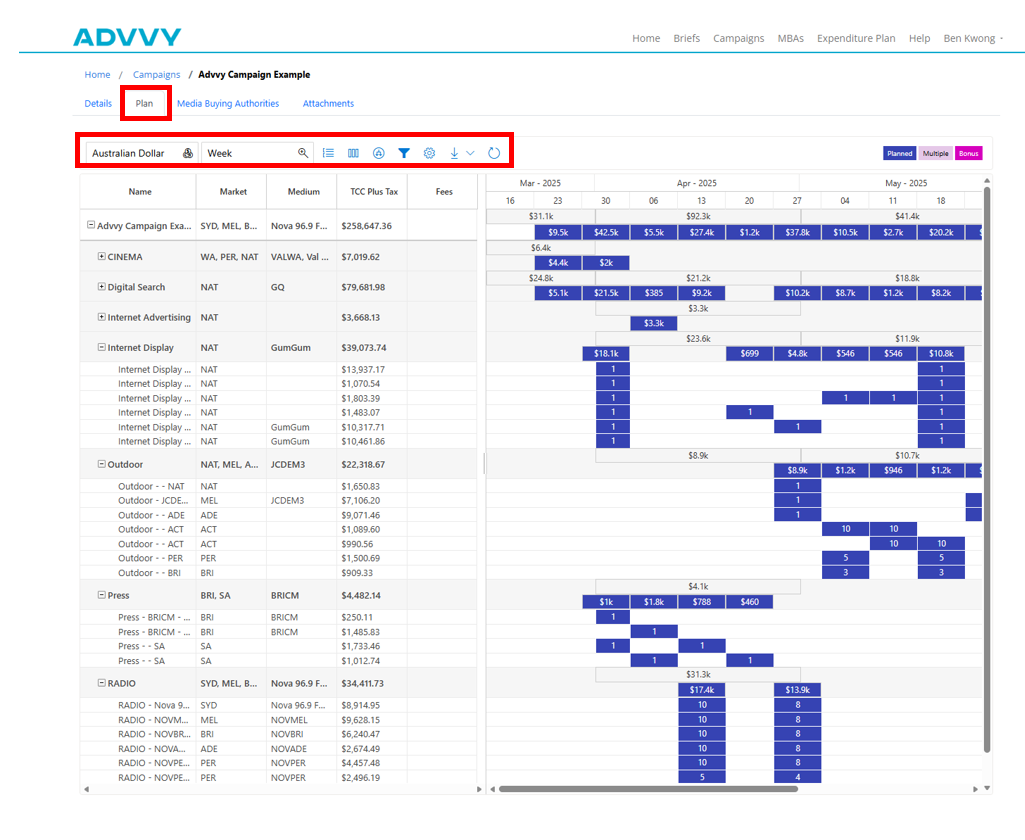
Gantt timeline · Interactive and view-only for clients
A Gantt-style interactive timeline of the campaign's flighting records. Clients can adjust the view but cannot edit any data.
Currency
Switch display currency — options depend on Advvy config
Zoom level
Week / Month / Year — Week is default
Grouping
Group flights by Market or Media Type
Columns
Add/remove/reorder data columns — session-only cache
Quick Filters
Filter by media type — must click Apply — coloured indicator when active
Refresh Data
Re-fetches flighting data from Advvy — clients must do this manually
Export
PNG or PDF — server-side generation — loading screen → Download button
Settings (cog)
Week definition, decimals, alignment, Gantt labels, export options
Tip: Encourage clients to use Refresh Data if they suspect they're not seeing the latest activity — the portal does not auto-refresh.
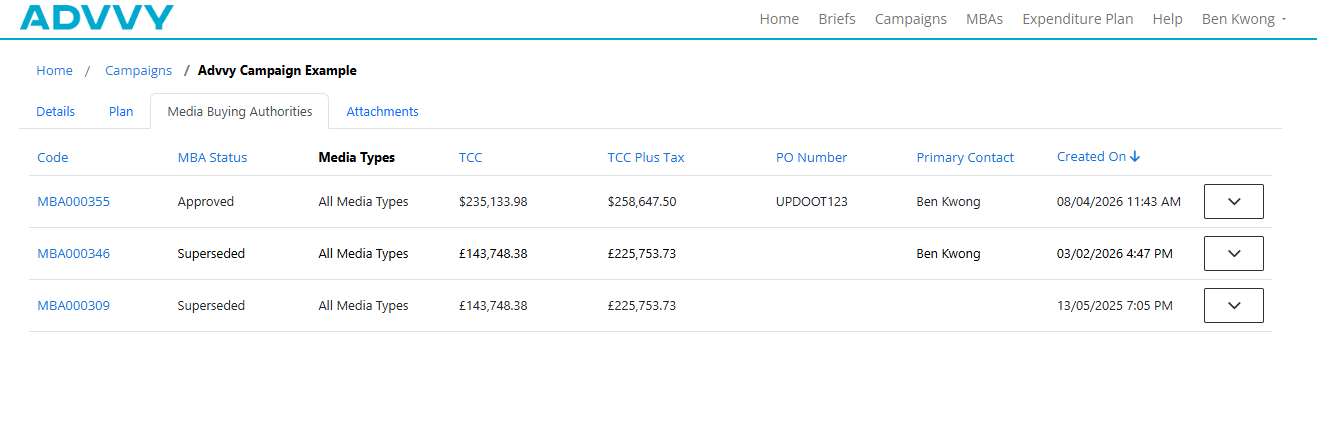
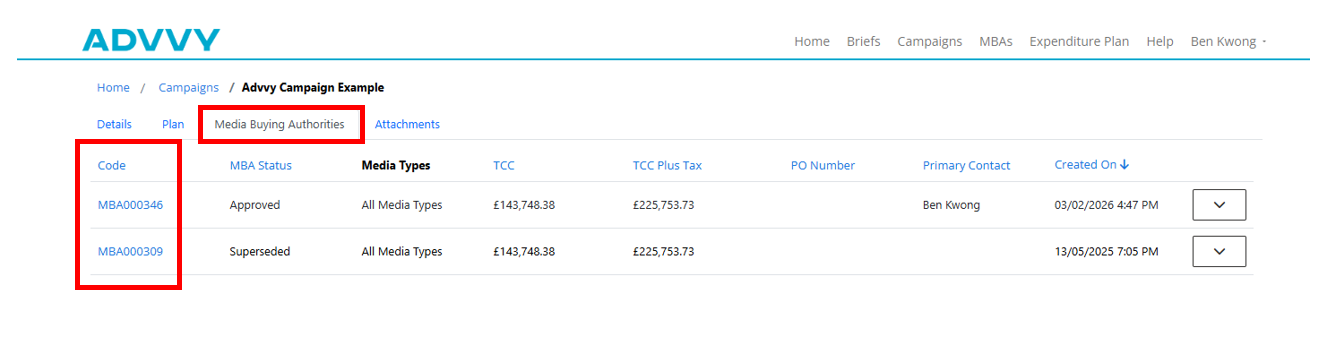
MBAs Tab (within a campaign)
All MBAs linked to this specific campaign
Lists MBAs for this campaign only. Clients can view the scoped plan and download the MBA document from the Attachments tab inside the MBA.
MBA Number
MBA.number — click to open full MBA details
Status
Approved / Awaiting Approval / Superseded
TCC / TCC + Tax
Aggregated from MBA flighting records
PO Number
MBA.purchase_order_number — provided by client at approval
Plan tab (inside MBA)
Shows only activity captured in this MBA, not the full campaign
Attachments tab
MBA document download — triggers server-side generation
Attachments Tab (campaign level)
Campaign-level documents
Displays any campaign-level attachments added in Advvy. If empty, no attachments have been added to the campaign record.
MBA Approvals — Top-Level MBAs Section
How the client approval workflow works
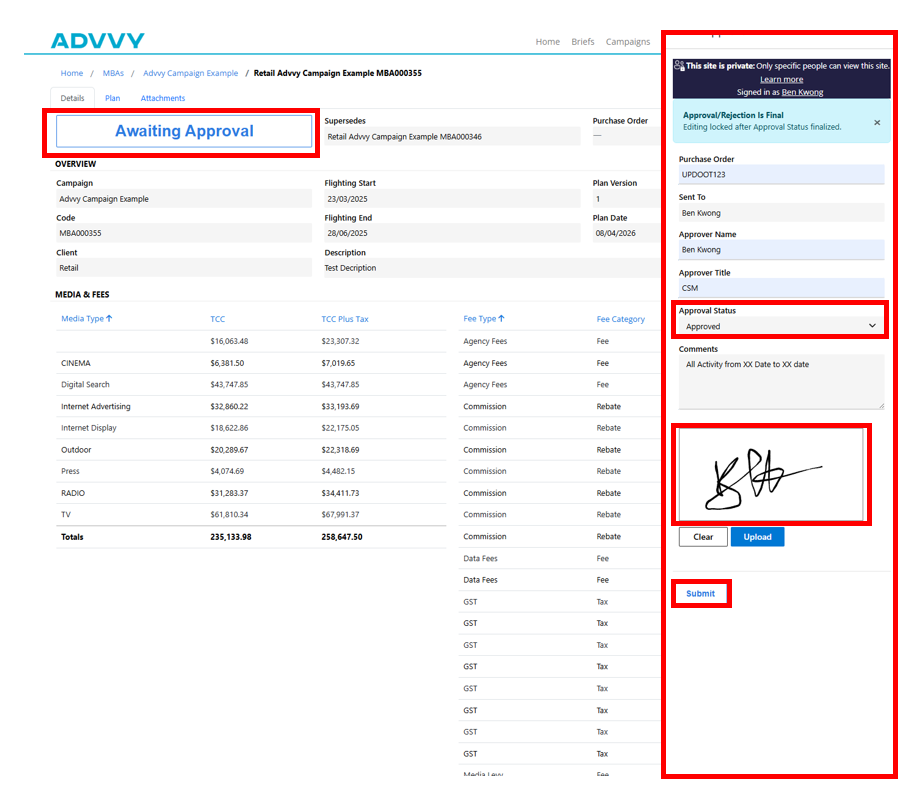
Clients access their full MBA list from the MBAs section in the top navigation — this shows MBAs across all campaigns, not just one.
When a client clicks Awaiting Approval
MBA Approval Panel slides in
Client fills in fields and submits
Status → Approved
Updates instantly
→
Advvy reflects change
No manual sync needed
→
Removed from Action Required
Instantly
| Approval field | Required? | Notes |
|---|
| Purchase Order | Optional | Stored on MBA record on submission |
| Approval Name | Yes | Client's full name |
| Approval Title | Yes | Client's job title |
| Approval Status | Yes | Status dropdown — options defined in Advvy config |
| Comments | Optional | Free text — stored on MBA record |
| Signature | Yes | Three methods: type name / draw / upload image file |
Tip: Once a client approves an MBA, the status change is reflected in Advvy immediately. No manual update is required from your agency team.
Expenditure Plan
Cross-campaign portfolio view
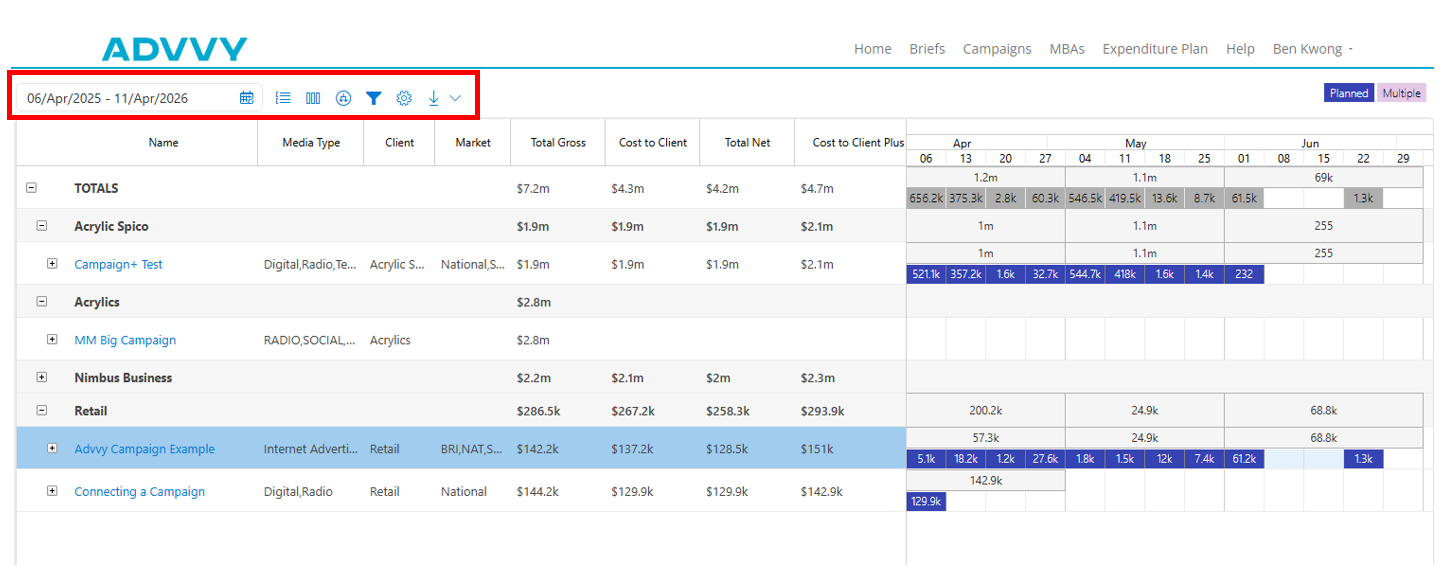
A cross-campaign view showing all campaigns assigned to the client in a single timeline. Direct clients here when they want a high-level view of total spend.
| Feature | Campaign Plan | Expenditure Plan |
|---|
| Scope | Single campaign | All assigned campaigns |
| Date filter | Not available | Date range selector (left panel) |
| Group by | Market / Media Type | Master Client / Client |
| Drill down | Campaign → Group → Flighting | Group → Campaigns → Flighting |
| Flighting load | Fast | Slower — larger dataset |
| Extra settings | Standard | Key Dates & Holidays, New Syncs, Aggregate options |
Tip: Let clients know that drilling down to Flighting level in the Expenditure Plan may take a few seconds — this is expected due to the larger dataset.
Common Client Questions & How to Handle Them
Quick reference for agency teams
| Client says… | Likely cause | What to do |
|---|
| I can't sign in | Access not provisioned or Microsoft account issue | Escalate to your platform admin |
| I can't see my campaign | Campaign not assigned to client in Advvy, or wrong status | Check campaign assignment and status in Advvy |
| The plan looks wrong | Flighting data not updated in Advvy | Update campaign flightings in Advvy — portal reflects on reload |
| My MBA document won't download | Document not yet generated or not attached in Advvy | Check MBA attachment in Advvy — regenerate if needed |
| I don't see the latest activity | Cached plan view | Ask client to click Refresh Data on the Plan tab |
| I want to update the homepage tiles | Customisation needed | Contact your Advvy representative |
Key Takeaways
1
The Client Portal is entirely data-driven from Advvy — all content issues must be fixed at the Advvy source first.
2
MBA approval is the only write action available to clients — everything else is view, filter, and export only.
3
Approvals are instant — the MBA status updates in both the portal and Advvy the moment the client submits.
4
Walk clients through the Plan tab during onboarding — it's highly interactive and they get far more from it when they know the controls.
5
The Expenditure Plan is for the big picture — direct clients here when they want a cross-campaign view of total spend.
6
Use the homepage tiles — prime real estate for communicating with your clients. Keep them current.