Admin Review — Functionality Guide
A system health dashboard for administrators. View workspace configuration status, resolve blocking issues, and audit user/contact setup — all from a single screen.
What is Admin Review?
Admin Review is a system health dashboard found under Agency Settings → System Settings → Admin Review. It gives administrators a quick snapshot of the platform's configuration status — highlighting blocking issues, warnings, and passed validation checks across the workspace.
The screen also includes a People view for reviewing user setup, contact assignments, and organisational hierarchy at a glance.
Location
Agency Settings → System Settings → Admin Review
Who has access
Admins with System Settings permissions
Purpose
Validate workspace config, resolve issues, audit users
Refresh
Manual — click Refresh to re-run all checks
Top Banner — Summary Tiles
The top of the Admin Review screen always shows four summary tiles giving you an at-a-glance workspace health status.
Overall
Status
Current workspace health: Blocking, Warning, or Passing
Failures
0
Blocking issues that must be resolved
Warnings
0
Items requiring attention but not blocking
Passes
0
Items validated successfully
A Refresh button in the top-right re-runs all validation checks against current data. Always click Refresh after making configuration changes to see updated results.

Workspace Panel — Checks Tab
Checks Tab Overview
The right-hand Workspace panel contains two tabs: Checks and People. The Checks tab displays automated validation results split into three columns.
Failures
Blocking issues
Must be fixed
Must be fixed
|
Action Items
Warnings
Require attention
Require attention
|
Passed Checks
Validated OK
No action needed
No action needed
Each check card shows the check name and the specific problem or confirmation. Every card includes Open list and Open in new window buttons to navigate directly to the affected records.
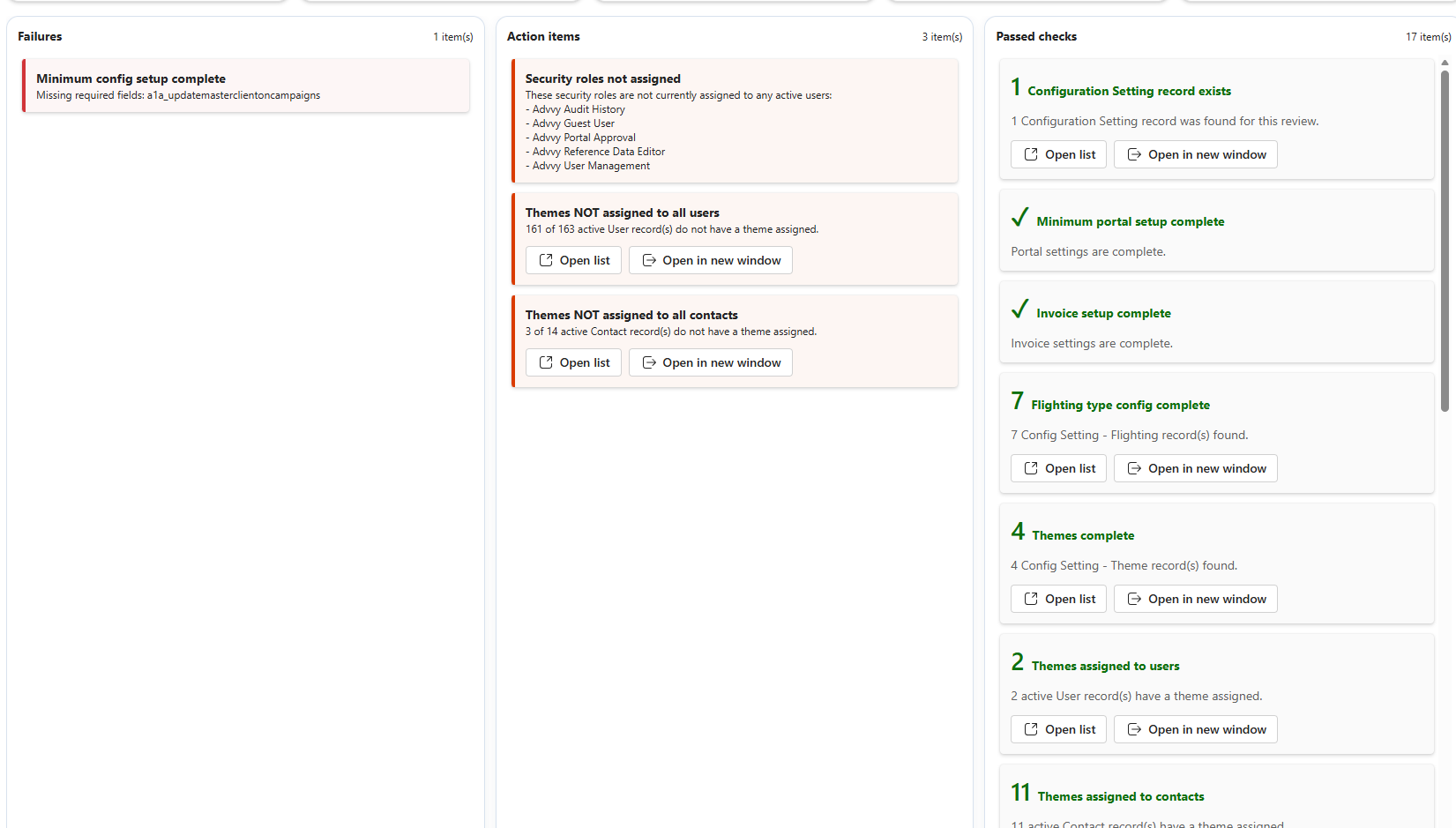
Failures Blocking
Failure cards have a red border and represent blocking issues that must be fixed before the system will function correctly. The card shows the check name and the specific field or record causing the failure.
Warning: Failures block core platform functionality. Resolve these before addressing warnings — the system may not behave correctly until all failures are cleared.
Action Items Warning
Action Item cards have an orange border and represent items that require attention but won't fully block the system. Each card includes navigation buttons to jump directly to the affected records.
Tip: The Open list button on each warning card takes you directly to the filtered set of affected records — you don't need to search for them manually.
Passed Checks Validated
Green cards confirm that critical configuration areas are correctly set up. Each passed check also includes Open list and Open in new window buttons so you can inspect the underlying records.
The following checks are validated:
Configuration Setting record exists
Minimum portal setup complete
Invoice setup complete
Flighting type config complete
Themes complete
Themes assigned to users
Themes assigned to contacts
Flighting Aggregate Config records
Flighting Aggregate records
Auto-Name records exist
Auto-Number records exist
Process Automation records exist
Week Definition records exist
Market records exist
Medium records exist
Network records exist
Media Type records exist
⚠️
Important: A check that technically passes but shows an unexpectedly low count (e.g. only 2 of 163 users assigned a theme) may still indicate a concern. Cross-reference with the Action Items column.
Workspace Panel — People Tab
People Tab Overview
The People tab provides a User/Contact summary with three sub-tabs: User Table, User Hierarchy, and Contact Table. Use these to audit user setup, access patterns, and portal contact configuration without leaving Admin Review.
User Table
A flat list of all users in the workspace. Use this view to audit activity, role assignments, locale settings, theme assignments, and team memberships across every user record.
Full Name / Email
User identity and primary email address
Total Actions (30d)
Number of actions performed in the last 30 days
Last Action On (30d)
Date/time of the most recent action
Total Access (30d)
Total logins or access events in the last 30 days
Last Access On (30d)
Date/time of the most recent login/access event
Assigned Security Roles
All Dynamics/Advvy security roles assigned to this user
Currency / Date Format / Timezone / Locale
User's regional and display settings
Theme
The Advvy theme assigned — flagged if missing
Teams
All teams the user belongs to
Toolbar options: Search users · Filters · Export XLSX · Auditing Report · Reset table · Columns (show/hide)
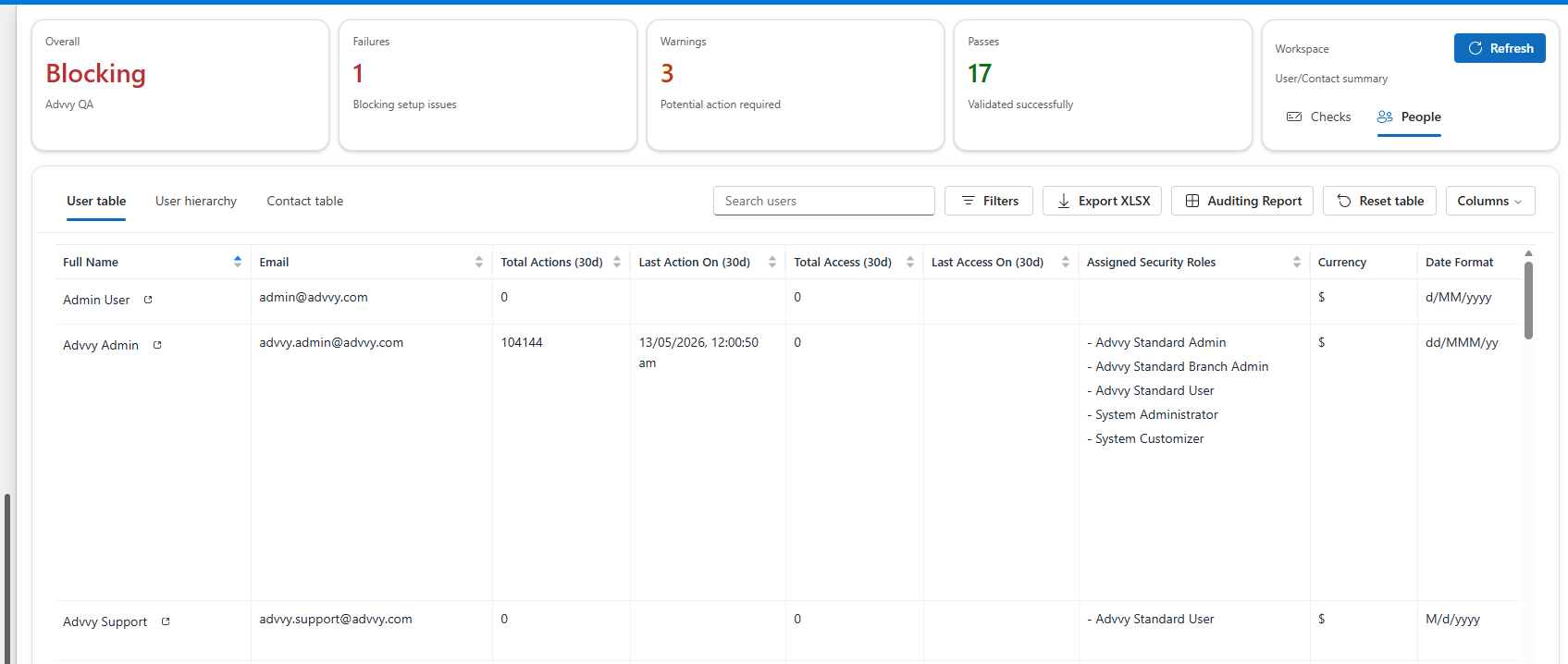
User Hierarchy
Shows the organisational structure of Business Units (Branches) and how many clients and users each contains. Each row can be expanded to drill into the hierarchy, making it easy to audit access scope across the organisation.
Toolbar options: Filters · Export CSV · Hierarchy Report · Expand all
Tip: The Hierarchy Report button generates a detailed export of the full team structure — useful for reviewing access scope across business units during compliance audits.
Contact Table
Lists all portal contacts with their assigned themes, web roles, and linked client records. Unlike the User Table, the Contact Table includes inline selectors for assigning or changing themes and web roles directly from this view.
Full Name / Email
Contact identity and primary email
Phone Number
Contact phone number
Theme
Portal theme assigned — with inline selector to assign/change
Web Roles
Portal web roles assigned — with inline selector
Associated Clients
Client records linked to this contact
Toolbar options: Search contacts · Filters · Export XLSX · Portal Audit Report · Reset table · Columns (show/hide)
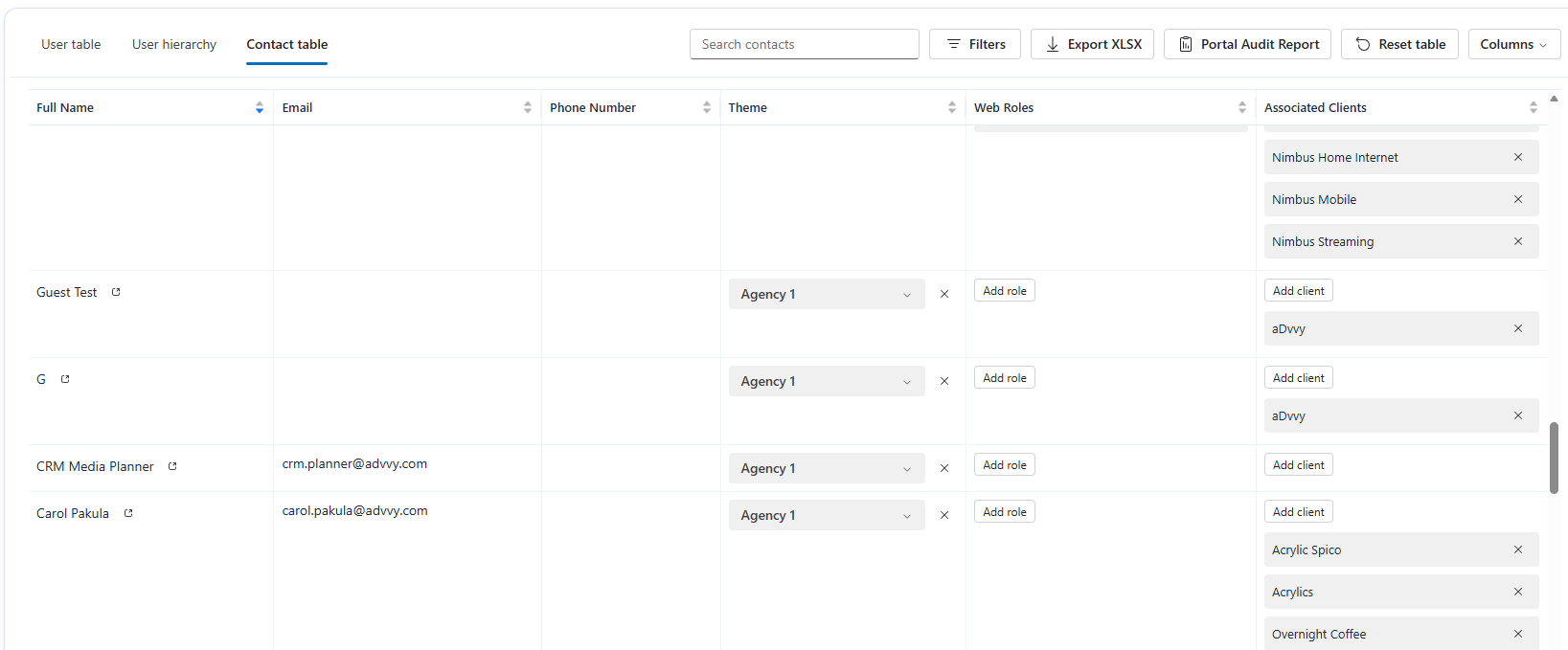
How to Resolve Common Issues
Failure: Minimum Config Setup Complete
A blocking failure — required configuration fields are missing or empty.
1
Navigate to Configuration Settings
Go to System Settings → Configuration Settings.
2
Identify the missing field
Check the failure card — it names the specific field (e.g.
a1a_updatemasterclientoncampaigns). Locate that field in the Configuration Settings form.3
Populate the required field
Enter the appropriate value. Refer to your agency's setup documentation or contact Advvy support if the expected value is unclear.
4
Return to Admin Review and Refresh
Go back to Admin Review and click Refresh to confirm the failure has cleared.
Warning: Security Roles Not Assigned
One or more security roles have no active users. The card lists which roles are unassigned.
1
Review the listed roles
Check the warning card for the specific role names (e.g. Advvy Audit History, Advvy Guest User, Advvy Portal Approval, Advvy Reference Data Editor, Advvy User Management).
2
Navigate to Security → Users
Go to Security → Users and select the user who should hold each listed role.
3
Assign the missing roles
Open the user record and assign the appropriate security roles from the role assignment panel.
4
Refresh Admin Review
Return to Admin Review and click Refresh to verify the warning has cleared.
Admin only: Some security roles (e.g. Advvy User Management) carry elevated privileges. Only assign these to users who require them per your agency's access control policy.
Warning: Themes Not Assigned to All Users
Active User records exist without a theme assignment.
1
Click Open list on the warning card
This opens a filtered view of all users missing a theme assignment.
2
Assign a theme to each user
Do this via the User Table in the People tab, or navigate to each user individually via Security → Users.
3
Refresh Admin Review
Click Refresh to confirm the count has dropped to zero.
Warning: Themes Not Assigned to All Contacts
Active Contact records exist without a portal theme.
1
Click Open list on the warning card
This opens a filtered view of all contacts missing a theme.
2
Assign themes using the inline selector
In the Contact Table tab, use the inline theme dropdown on each affected contact row to assign the correct portal theme.
3
Refresh Admin Review
Click Refresh to verify the warning has resolved.
Key Takeaways
1
Admin Review is your workspace health check. It validates configuration, highlights blocking issues, and surfaces warnings — all from a single screen under System Settings.
2
Failures must be resolved first. Red failure cards block core functionality. Clear these before moving on to orange warnings.
3
Always Refresh after making changes. The Refresh button re-runs all checks against current data — results don't update automatically.
4
Use "Open list" to jump directly to affected records. Every check card — failure, warning, or pass — has navigation buttons to the underlying data.
5
The People tab is your user audit hub. Review activity, role assignments, theme status, and hierarchy from the User Table, User Hierarchy, and Contact Table sub-tabs.
6
Passed checks can still flag concerns. A technically passing check with an unusually low count may indicate a warning-level issue — cross-reference with the Action Items column.
Was this article helpful?
That’s Great!
Thank you for your feedback
Sorry! We couldn't be helpful
Thank you for your feedback
Feedback sent
We appreciate your effort and will try to fix the article