Before You Start
Check these conditions before converting the brief.
Brief status is Approved — Only approved briefs should be converted. Check the status field on the brief record.
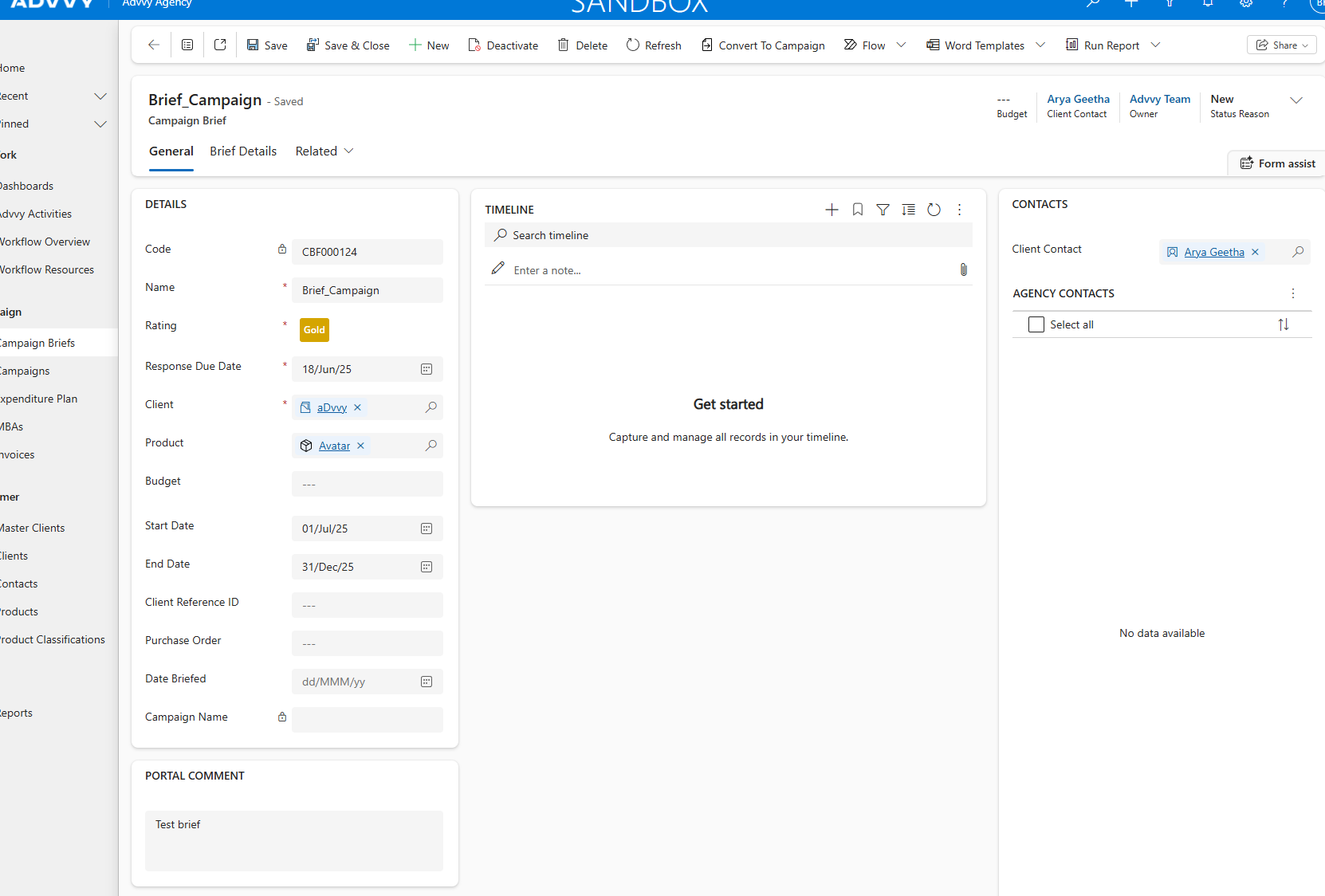
Client field is correct — The Client cannot be changed after the Campaign is saved. Confirm it on the brief before proceeding.
Product exists in Advvy — The Product field on the Campaign must be set. Confirm the Product record exists before converting.
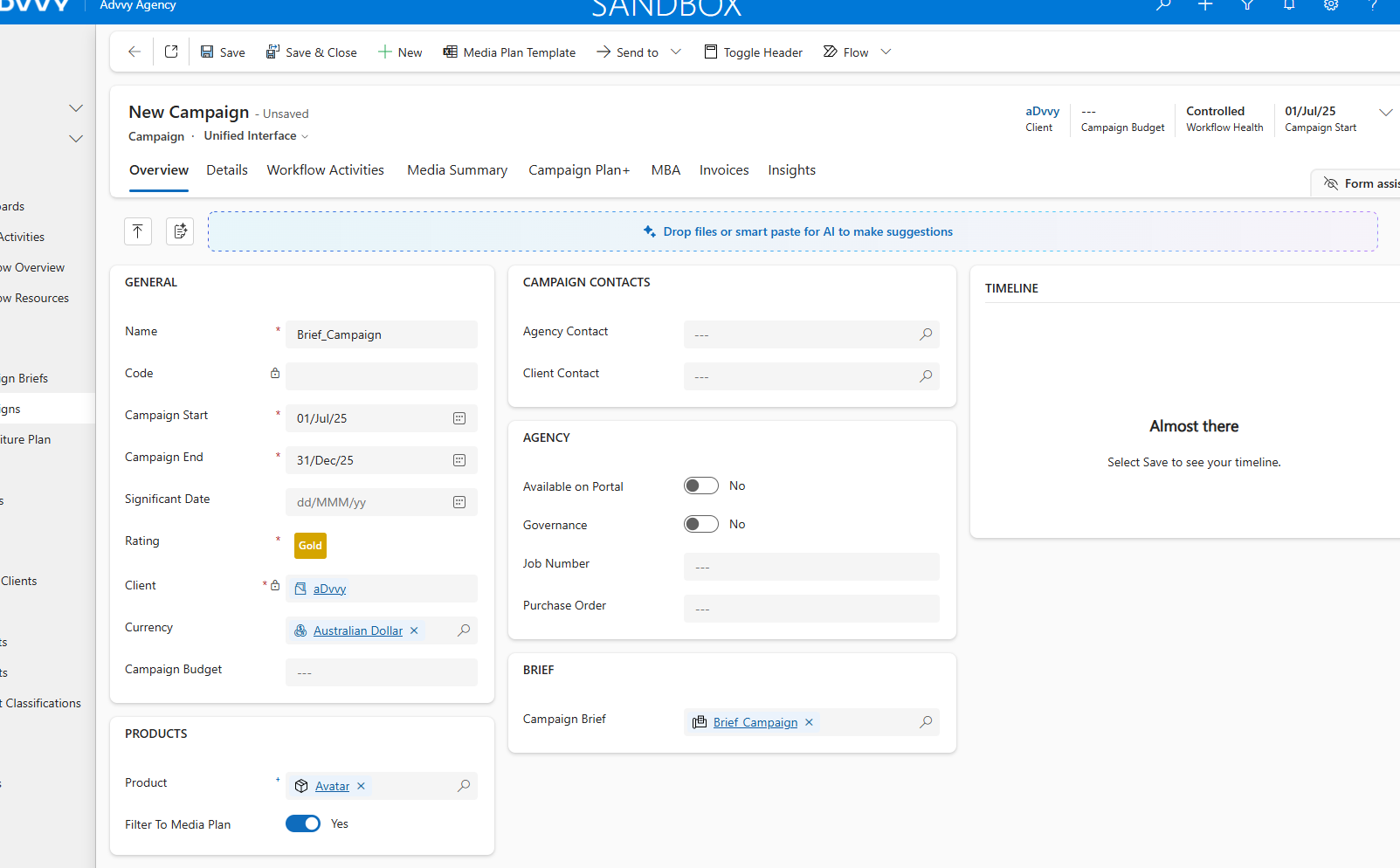
Dates and budget confirmed — The Start Date, End Date, and Budget will carry over from the brief. Confirm these are final before converting.
⚠️
The Client field cannot be changed after the Campaign is saved. If the wrong client is on the brief, update it before converting — not after.
Steps
Follow these steps to convert the brief and complete the Campaign record.

✅ After Saving
- The Campaign is created in Draft status and is immediately available for media planning
- The Campaign Brief is marked as Converted and locked — no further edits to the brief
- The Campaign will be searchable in the Advvy Excel Add-in once connected to the correct environment
- You can now configure Parent/Child structures, upload a media plan, and generate MBAs
What Carries Over from the Brief
Fields that auto-populate on the Campaign, and those you need to complete manually.
Post-Conversion Checklist
Things to verify after the Campaign is saved.
- Campaign Code is set and unique — required for Excel Add-in connection
- Product is selected — the Campaign cannot be synced without a Product
- Start and End Dates are correct — adjust Start Date earlier if needed for SMD/Pegasus exports
- Original Campaign Brief is now marked Converted — confirm on the brief record
- Connect the Advvy Excel Add-in to the Campaign if media planning is the next step — see How to: Connect the Add-in to a Campaign ↗
- Set up Parent/Child structure if this Campaign is part of a multi-market or multi-phase initiative — see How to: Set Up a Parent & Child Campaign Structure ↗
Key Takeaways
1
Click "Convert to Campaign" from the brief's ribbon — the Campaign record is created automatically with key fields pre-filled.
2
Campaign Code and Product must be completed before saving — these are agency-side fields not set on the brief.
3
Verify the Client field before saving — it locks immediately and cannot be changed once the Campaign record is saved.
4
The Campaign Brief locks after conversion. It is set to Converted status and becomes read-only — all further campaign work happens on the Campaign record.
5
Client-supplied brief data (from the Client Portal) carries over automatically — objectives, notes, and target audience are all pre-populated from the client's original submission.
Was this article helpful?
That’s Great!
Thank you for your feedback
Sorry! We couldn't be helpful
Thank you for your feedback
Feedback sent
We appreciate your effort and will try to fix the article