How to: Create a Campaign Record

Modified on Fri, 16 Jan at 3:19 PM

Overview

This article explains how to create a Campaign record in Advvy. Campaigns are the foundation for managing media plans, budgets, workflows, and integrations.

You can create a Campaign in two ways:

  • Creating a new Campaign manually

  • Converting an existing Campaign Brief into a Campaign

This article covers both methods and highlights key rules to be aware of.


Before You Start

Before creating a Campaign, ensure:

  • You have access to Advvy Agency → Campaigns

  • The correct Client and Product records exist

  • You are working in the correct Advvy environment (if using Excel later)

Important: Once a Campaign is saved, the Client cannot be changed.


Option 1: Creating a New Campaign

Step-by-Step

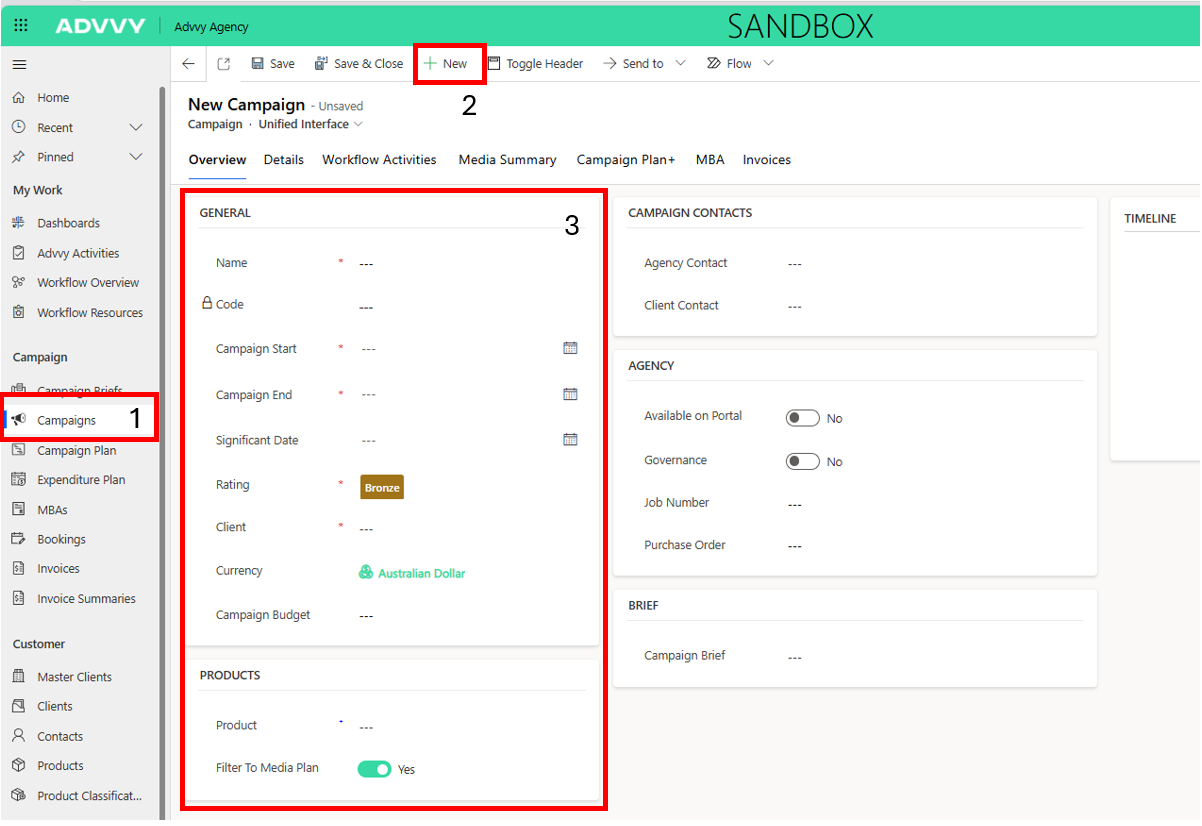
  1. Navigate to Advvy Agency → Campaigns

  2. Select + New from the ribbon

  3. Complete the Campaign form

Required Fields

The following fields must be completed before saving:

  • Campaign Name
    Use a clear and unique name for easy identification.

  • Campaign Code
    This may be auto-generated depending on configuration. If editable, ensure it is unique.

  • Start Date / End Date
    These represent the live campaign period.

  • Client
    Select the client associated with the campaign. This field cannot be changed after save.

  • Product
    Select the relevant product or brand.

  • Campaign Budget
    Enter the total planned budget for the campaign.

  1. Select Save to create the Campaign record


Option 2: Converting a Campaign Brief

Campaigns can also be created directly from an approved Campaign Brief.

Step-by-Step

  1. Open the Campaign Brief

  2. Select Convert to Campaign from the ribbon

  3. A new Campaign record will be created in Draft status

  4. Review all pre-filled fields

  5. Update any details if required

  6. Select Save

Most Campaign Brief information will carry over, including:

  • Client

  • Product

  • Dates

  • Budget


After the Campaign Is Created

Once saved, the Campaign record can be used to:

  • Upload media plans via the Excel Add-in

  • Configure workflows and automations

  • Create Parent or Child Campaign relationships

  • View data in Campaign Plan+ and Media Summary

The Campaign will also become searchable in the Advvy Excel Add-in (ensure you are connected to the correct environment).


Key Rules & Considerations

  • Client field is locked after the Campaign is saved

  • Each Campaign supports one active media plan ingestion at a time

  • Uploading a new media plan will replace existing plan data

  • Start dates may need to be set slightly earlier if exporting to external systems (e.g. SMD / Pegasus)

  • Forms may differ, please ensure that you are using the correct form. - See screenshot below


Troubleshooting

If you cannot see your Campaign:

  • Confirm it has been saved successfully

  • Check you are searching in the correct environment

  • Ensure you have permission to view Campaign records


Was this article helpful?

That’s Great!

Thank you for your feedback

Sorry! We couldn't be helpful

Thank you for your feedback

Let us know how can we improve this article!

Select at least one of the reasons
CAPTCHA verification is required.

Feedback sent

We appreciate your effort and will try to fix the article