Before You Start
What you need to know before setting up the hierarchy.
When to Set Up
Can be done at any stage of the campaign lifecycle. Recommended: before syncing media plans to any child.
What You Need
At minimum: one parent campaign and one child campaign. Both can be created fresh or you can link existing campaigns.
⚠️
Do not sync media plans to the Parent Campaign. All media plan syncs must occur at the Child Campaign level. Syncing to a Parent will cause data inconsistency.
Step 1 — Create the Parent Campaign
The Parent Campaign acts as the reporting container for the entire initiative.
1
Navigate to Campaigns
Go to the Campaigns section from the left navigation menu.
2
Create New Campaign
Select Create New Campaign.
3
Fill in the Campaign Details
Enter the required fields:
- Campaign Name — use a clear naming convention, e.g. "Global Retail Campaign 2025 – Parent"
- Client
- Start Date and End Date
4
Save the Record
Select Save. This campaign will now act as the Parent Campaign.
?
Tip: Add a label like "Parent" or "Master" to the campaign name so it's easy to identify when linking Child Campaigns.
Step 2 — Create and Link a Child Campaign
Child Campaigns hold the actual media plans and are linked to the Parent via the Details tab.
1
Create a New Campaign (for the Child)
Navigate to Campaigns and select Create New Campaign. Enter the Child Campaign details and select Save.
2
Open the Child Campaign
Open the campaign you just created (or an existing campaign you want to link as a child).
3
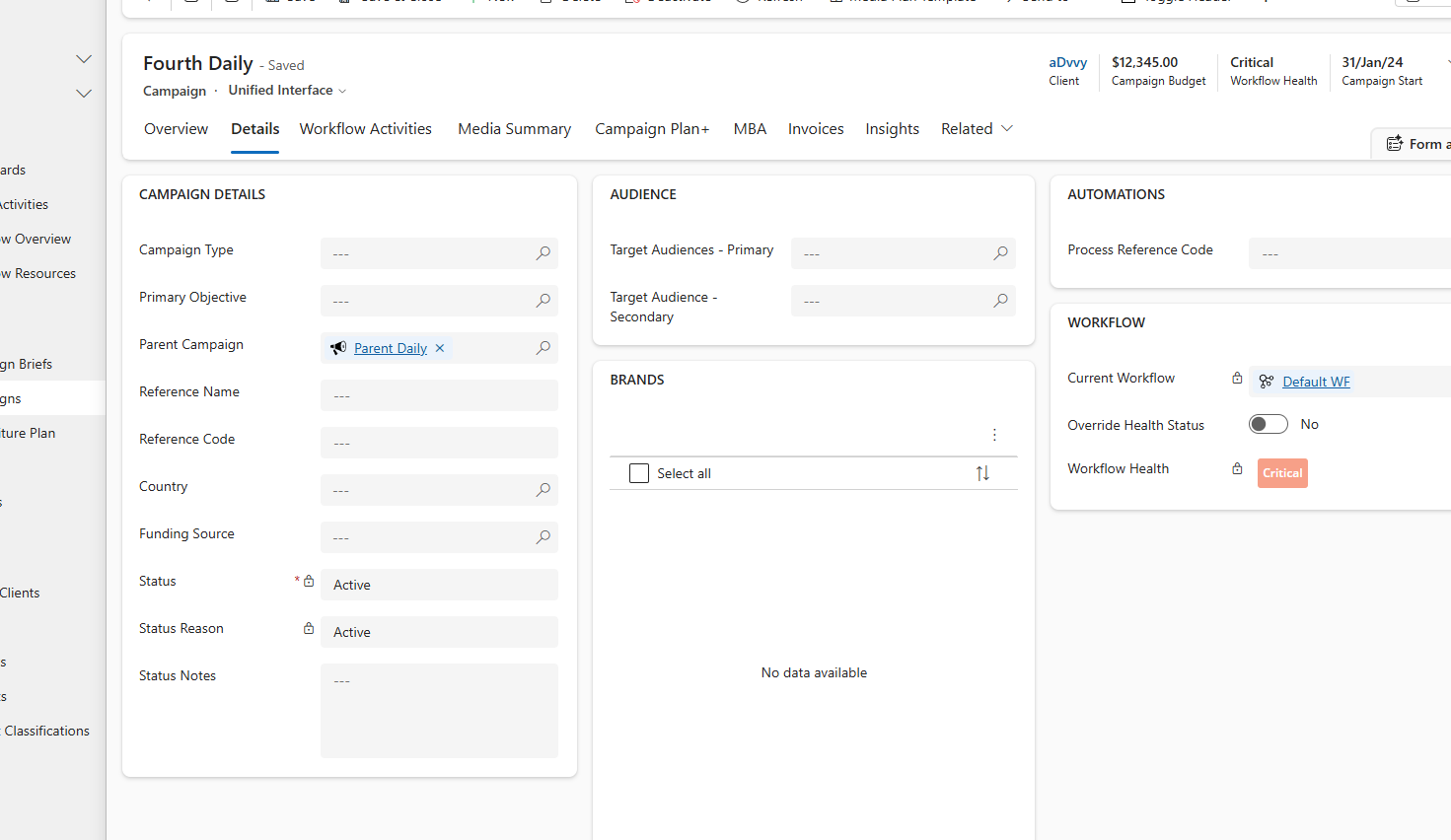
Go to the Details Tab
Navigate to the Details tab on the Child Campaign record.
4
Select the Parent Campaign
In the Parent Campaign field, search for and select your Parent Campaign.
5
Save the Record
Select Save. The link is now established.
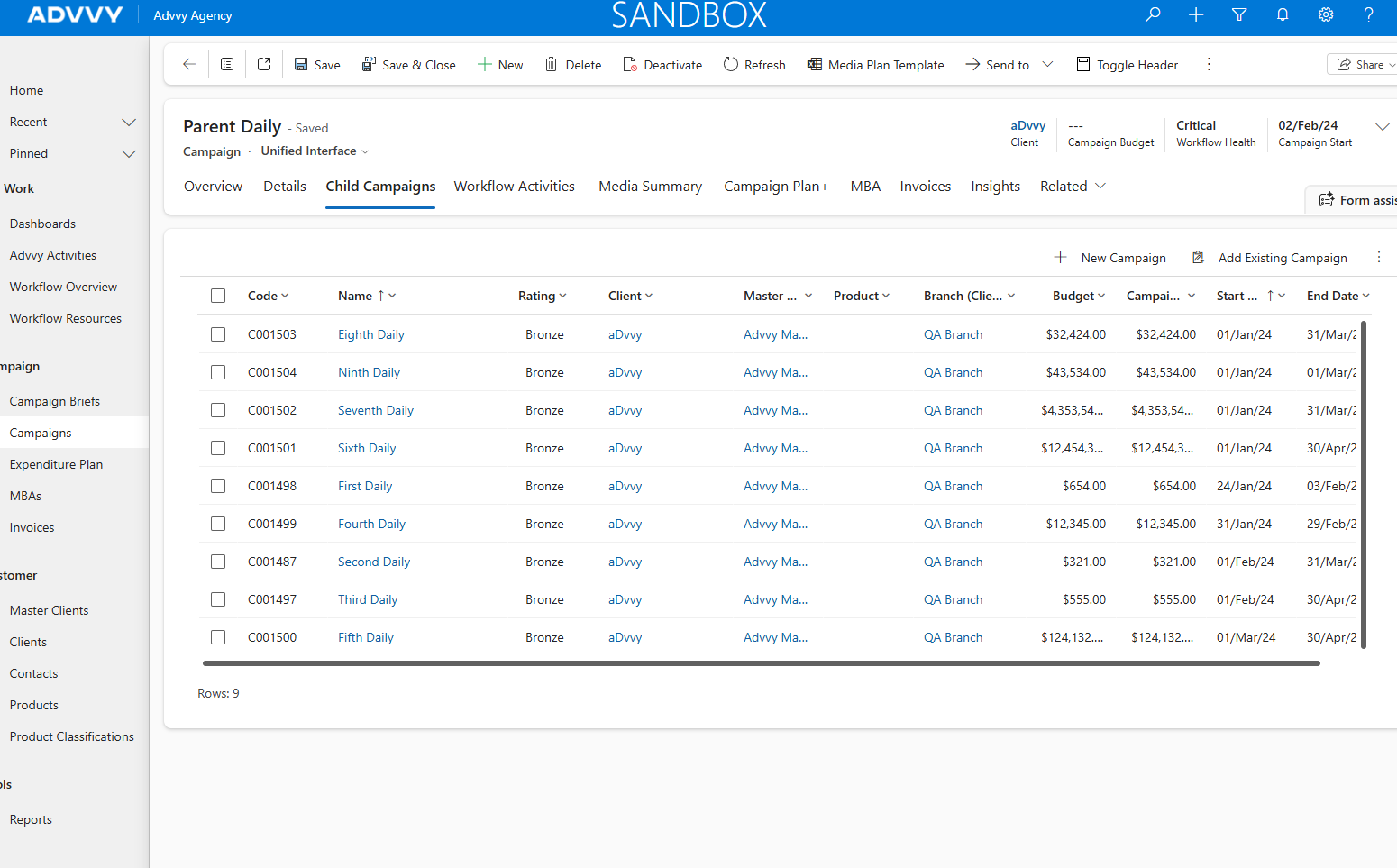
✅ After Saving
- The Parent Campaign now displays a Child Campaigns tab showing all linked children
- The Child Campaign's data will begin rolling up to the Parent Campaign's Media Summary and Campaign Plan+ views
- You can click directly to Child Campaign records from the Parent
Step 3 — Add More Child Campaigns (if Required)
Repeat the linking process for each additional child. There is no limit to the number of children per parent.
For each additional market, phase, product, or channel:
Option A — Link a New Campaign: Create a new campaign following Step 2 above, then set the Parent Campaign field to the same Parent.
Option B — Link an Existing Campaign: Open any existing campaign, go to its Details tab, set the Parent Campaign field to your parent, and save.
ℹ️
You can also add Child Campaigns from within the Parent Campaign via its Child Campaigns tab. This navigates you to the new campaign form with the parent pre-filled.
Linking Behaviour & Important Rules
How Advvy handles campaign relationships once they are established.
Key Takeaways
1
Create the Parent first, then create and link your Child Campaigns. The link is set on each Child via the Details tab → Parent Campaign field.
2
Recommend setting up the hierarchy before syncing any media plans to ensure roll-up data is accurate from the start.
3
There is no limit to the number of Child Campaigns that can be linked to a single Parent. Add children at any time, including after media plan syncs.
4
Existing campaigns can be linked as children at any point — open the campaign record, go to Details, and set the Parent Campaign field.
5
Never sync a media plan to the Parent Campaign — always sync at the Child level. The Parent is a read-only aggregation layer.
Was this article helpful?
That’s Great!
Thank you for your feedback
Sorry! We couldn't be helpful
Thank you for your feedback
Feedback sent
We appreciate your effort and will try to fix the article