Overview
Advanced Find is a powerful filtering tool that allows users to build complex queries across Campaign Plan data.
It goes beyond simple dropdown filters and enables precise, logic-based exploration of campaign data.
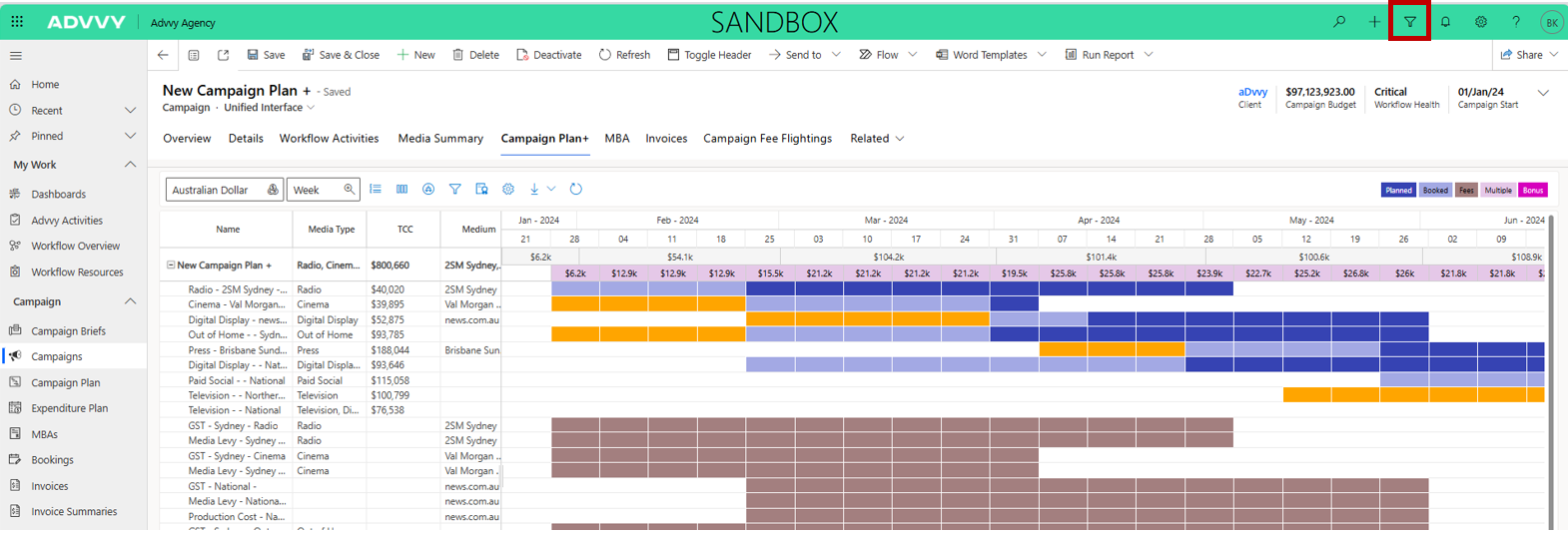
Advanced Find is accessed via the filter icon in the top-right corner of the Campaign Plan.
Why Use Advanced Find?
Advanced Find enables users to:
Target specific records with precision
Apply logical conditions using AND / OR rules
Filter aggregated data after grouping
Query related records such as campaigns or invoices
Reduce noise and manual errors
Quickly identify exceptions or issues
Advanced Find Filter Types
1. Row Filters
Row Filters target individual records based on direct field values.
Example:
Flighting rows missing a Day Code
2. Group Filters
Group Filters apply conditions after aggregation.
Example:
Media Owners with Total Net Spend greater than $50,000
3. Related Entity Filters
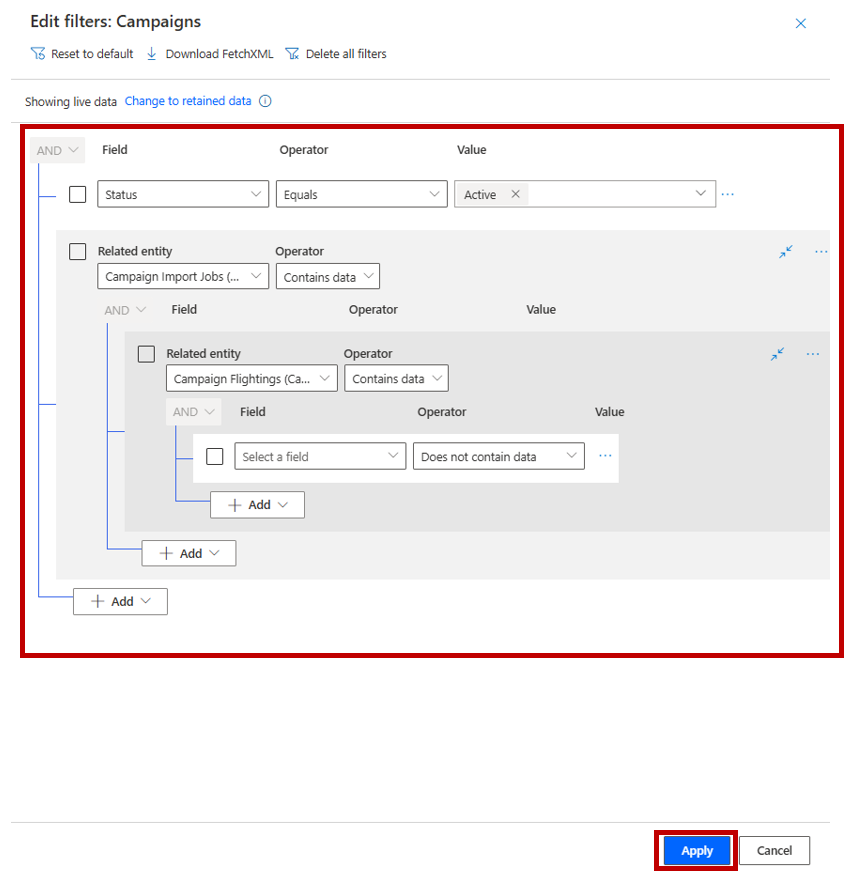
Related Entity Filters query data that exists outside the immediate row.
Example:
Only show flighting records where the Campaign Status = Active
Typical Advanced Find Workflow
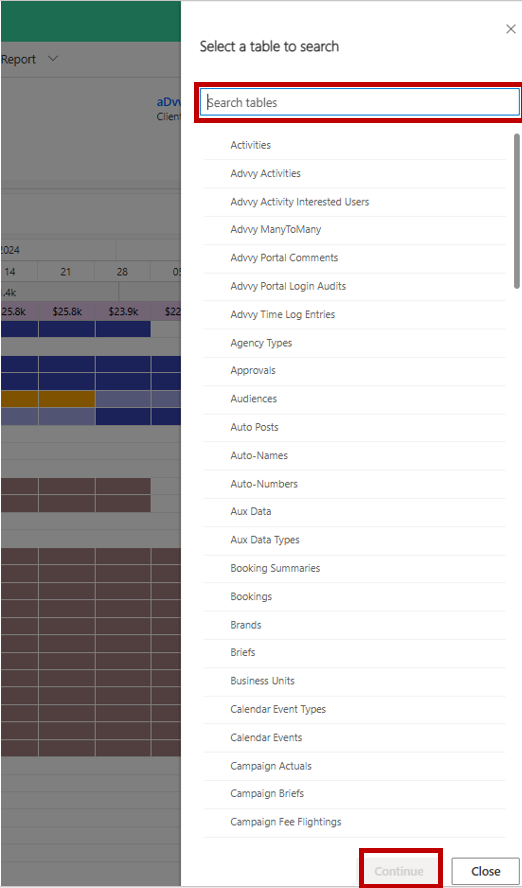
Open Advanced Find
Select the record type (e.g. Campaign Flighting)
Add filters:
Row filters (record-level rules)
Group filters (aggregated conditions)
Related-entity filters (join-based rules)
Select Apply
Review results
Optionally save the configuration as a View for future use
Was this article helpful?
That’s Great!
Thank you for your feedback
Sorry! We couldn't be helpful
Thank you for your feedback
Feedback sent
We appreciate your effort and will try to fix the article