How to: Generate an MBA

Modified on Tue, 20 Jan at 9:49 PM

Overview

An MBA (Media Buying Authorisation) is used to formally capture, review, and submit approved media activity for client authorisation.

The MBA generation process ensures that media activity planned in Excel and synced into Advvy is correctly filtered, reviewed, and converted into an authorisation document directly from the Campaign.


Before You Start

Before generating an MBA, ensure that:

  • A Campaign record has been created

  • The media plan has been successfully synced into the Campaign

  • All media activity intended for approval is accurate and complete

Important: Only media activity that has been synced into Advvy can be included in an MBA.


Step 1: Sync the Media Plan

Media activity must exist in Advvy before an MBA can be generated.

  1. Open the media plan in Excel

  2. Connect the Advvy Add-in to the correct environment and Campaign

  3. Sync the media plan

Once synced, campaign activity becomes available for selection in Campaign Plan+.


Step 2: Access Campaign Plan+

  1. Navigate to the relevant Campaign in Advvy

  2. Open the Campaign Plan+ tab

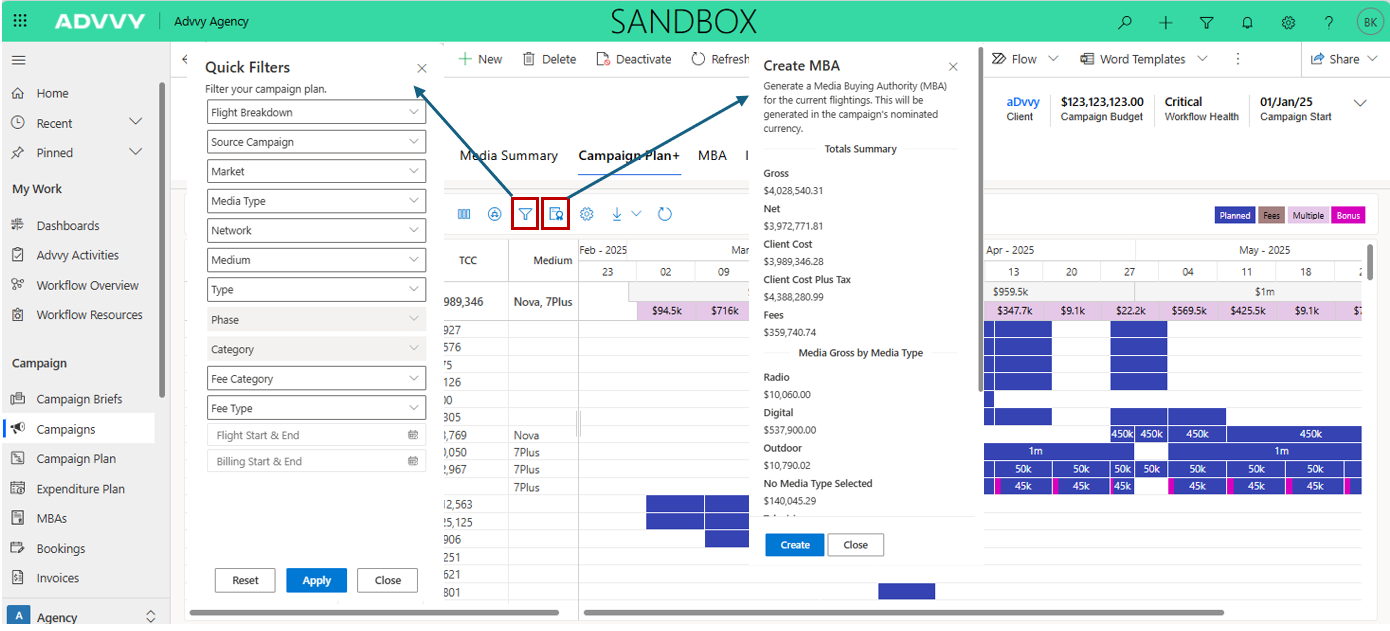
  3. Select the Campaign Filter to define which activity will be included in the MBA

Filters allow you to control exactly which media items are authorised (for example by market, medium, or date range).


Step 3: Review Media Activity

Before generating the MBA:

  • Review the filtered media items carefully

  • Confirm all activity, values, and dates are correct

  • Ensure only the intended items are visible

Only the activity currently displayed in Campaign Plan+ will be included in the MBA.


Step 4: Generate the MBA

  1. With the correct filter applied, select Create MBA

  2. Advvy begins generating the MBA automatically

During generation:

  • The selected media activity is captured

  • An MBA record is created and linked to the Campaign

A toast notification will confirm successful creation.


After the MBA Is Generated

Once created:

✔ The MBA record becomes available to open immediately
✔ Media and fee allocations are locked to that MBA
✔ The MBA can be reviewed, shared, or submitted for approval

You can view all MBAs for a Campaign in the MBA tab.


Common Things to Be Aware Of

  • Only filtered activity is included in the MBA

  • If media activity changes after MBA creation, a new MBA may be required

  • Multiple MBAs can be created for a single Campaign


Troubleshooting MBA Generation

If you cannot generate an MBA:

  • Confirm the media plan has been synced

  • Check that your filter returns at least one media item

  • Ensure you have permission to create MBAs

Was this article helpful?

That’s Great!

Thank you for your feedback

Sorry! We couldn't be helpful

Thank you for your feedback

Let us know how can we improve this article!

Select at least one of the reasons
CAPTCHA verification is required.

Feedback sent

We appreciate your effort and will try to fix the article