How to: Review and Submit an MBA

Modified on Fri, 10 Apr at 4:29 PM

Overview

Review and submit an MBA through the approval workflow in Advvy.

Once an MBA (Media Buying Authorisation) has been generated, it must be reviewed and submitted for approval before it is considered authorised. This guide covers how to review MBA contents and submit it through the approval workflow.

Before You Start

Prerequisites

  • An MBA has already been generated
  • You have access to the Campaign and the MBA record
  • The approval workflow has been configured for your environment

Step-by-Step: Review an MBA

Review the MBA contents before submission.

1
Open the MBA

Navigate toAdvvy Agency → Campaigns, open the Campaign, and select theMBAtab. Open the MBA record.

2
Review Key Sections

Check the following sections before submitting:

SectionWhat to Check
Client & Campaign DetailsCorrect client name, campaign name, and dates
Budget AuthorisationAmounts match planned budget — gross and net
Media Plan SummaryCorrect markets, media types, and period
Approval StatusShould be Current
?
Tip: If budget amounts look incorrect, check that the latest media plan sync has been run before generating the MBA.

Step-by-Step: Submit an MBA for Approval

Submit the reviewed MBA through the workflow.

1
Confirm Review is Complete

Ensure all sections have been reviewed and any required updates made.

2
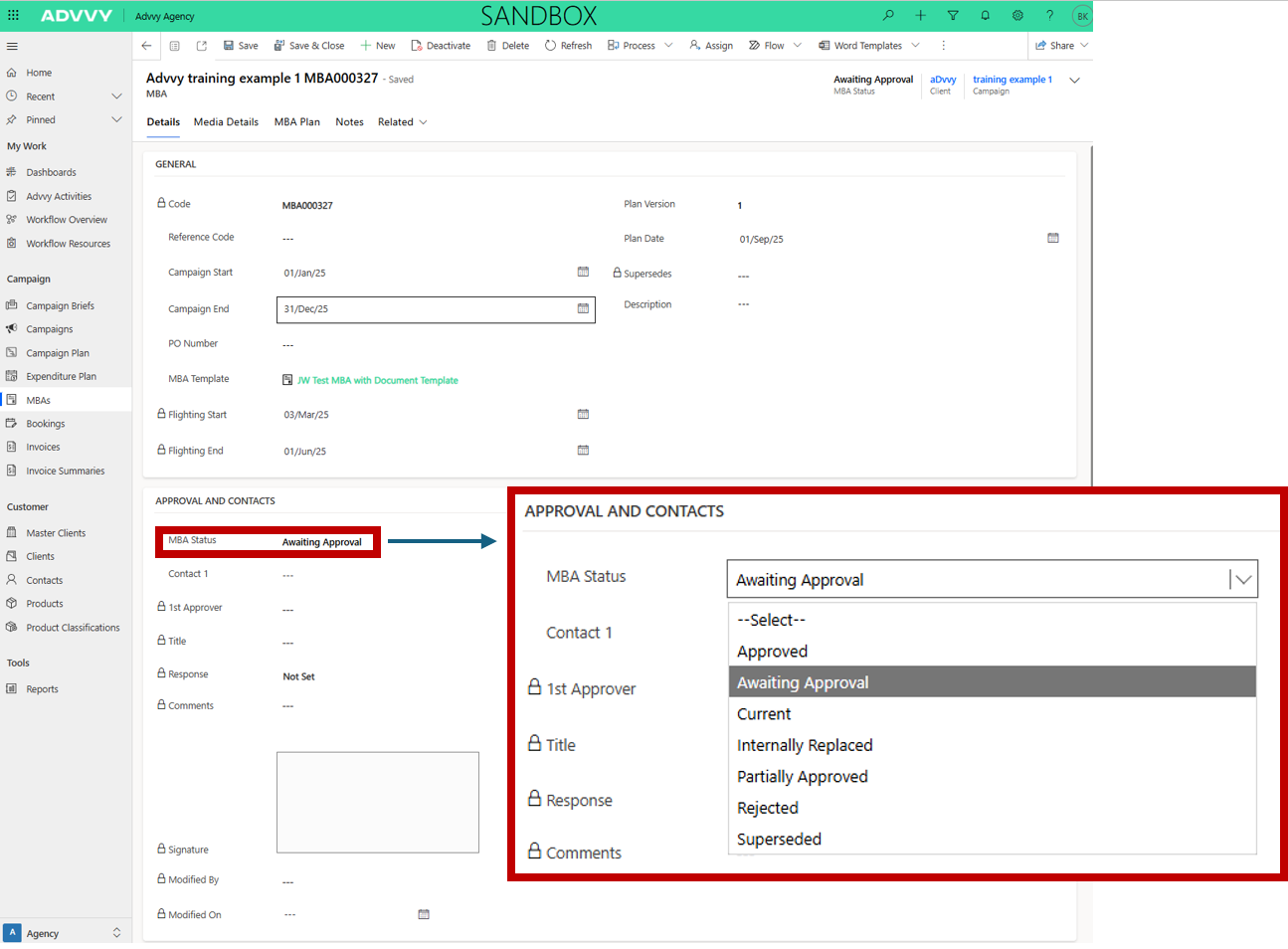
Change Status to Awaiting Approval

SelectAwaiting Approvalfrom the MBA status selection dropdown.

3
Save the MBA record

The MBA status will update toSaved. Approvers will be notified automatically based on the configured workflow.

4
Triggered MBA Workflow (Email and MBA Document/Paginated Report)

When the MBA status is updated toAwaiting Approval, it will trigger a flow. This will email Contact 1, Agency Contact, Client Contact, and the user who has triggered the status change to Awaiting Approval. This will also generate an MBA document or paginated report with the MBA details, which will be attached to the Notes tab. 

?
Admin Note: Approval workflow routing is configured at the environment level. Contact your admin if approvals are not being routed/triggered correctly.

MBA Status - Explained

StatusDescription
ApprovedClient has reviewed and approved the MBA. The MBA is visible in the Client Portal.
Awaiting ApprovalMBA is ready for client review. Changing to this status triggers automated email notifications and report generation.
CurrentMBA is active internally but not yet visible to the client.
Internally ReplacedMBA was replaced before client approval and is hidden from the client.
Partially ApprovedClient has approved only part of the MBA. Follow-up or a revised MBA may be required.
RejectedClient rejected the MBA. Corrections are required before resubmission.
SupersededMBA has been replaced by a newer version. Retained for reference and hidden from the client.


Key Takeaways

1
Always review budget amounts against the latest synced media plan before submitting an MBA.
2
Only MBAs with status set to Awaiting Approval are sent to the client.
3
Regenerating an MBA does not automatically update existing MBAs

Was this article helpful?

That’s Great!

Thank you for your feedback

Sorry! We couldn't be helpful

Thank you for your feedback

Let us know how can we improve this article!

Select at least one of the reasons
CAPTCHA verification is required.

Feedback sent

We appreciate your effort and will try to fix the article